

- Custom Variable Widget
- Priority Matrix
- Heatmap Widget
- Grid Widget
- Weighted mean widget
- Comment List widget
- Widget Filters
- Ranking List Widget
- Distribution Chart
- NPS Widget
- Trend Widget
- Word Cloud Widget
- Cross tab widget
- KPI Comparison Widget
- Bubble chart
- Custom Metric Trend Chart
- Trend Comparison Widget

Embed Custom Widgets in Journey Maps
Universal Widget lets you add widgets from different sources directly to your Journey Maps. Bring data, visualizations, and external content into your customer journey so you can view insights in context.
You can add a widget using either of these methods:
- CX Dashboard: Select an existing CX Dashboard, choose a widget, and set the date range.
- Custom Widget: Embed content from an external source using a publicly accessible URL or iframe embed code.
All widgets are displayed in the Metrics lane of your Journey Map.
- A Journey Map in a Journey Management workspace.
- A Metrics lane on the Journey Map. If one does not exist, add it before you begin.
- For CX Dashboard widgets: An existing CX Dashboard in the same workspace as your Journey Map.
- For Custom Widgets: A publicly accessible URL or iframe embed code from a source that allows embedding.
- Navigate to Journey Management.
- Open the workspace containing your Journey Map.
- Open the Journey Map where you want to add a widget.
- Add a Metrics lane if one does not already exist.
- In the Metrics lane, click the Add (+) button.
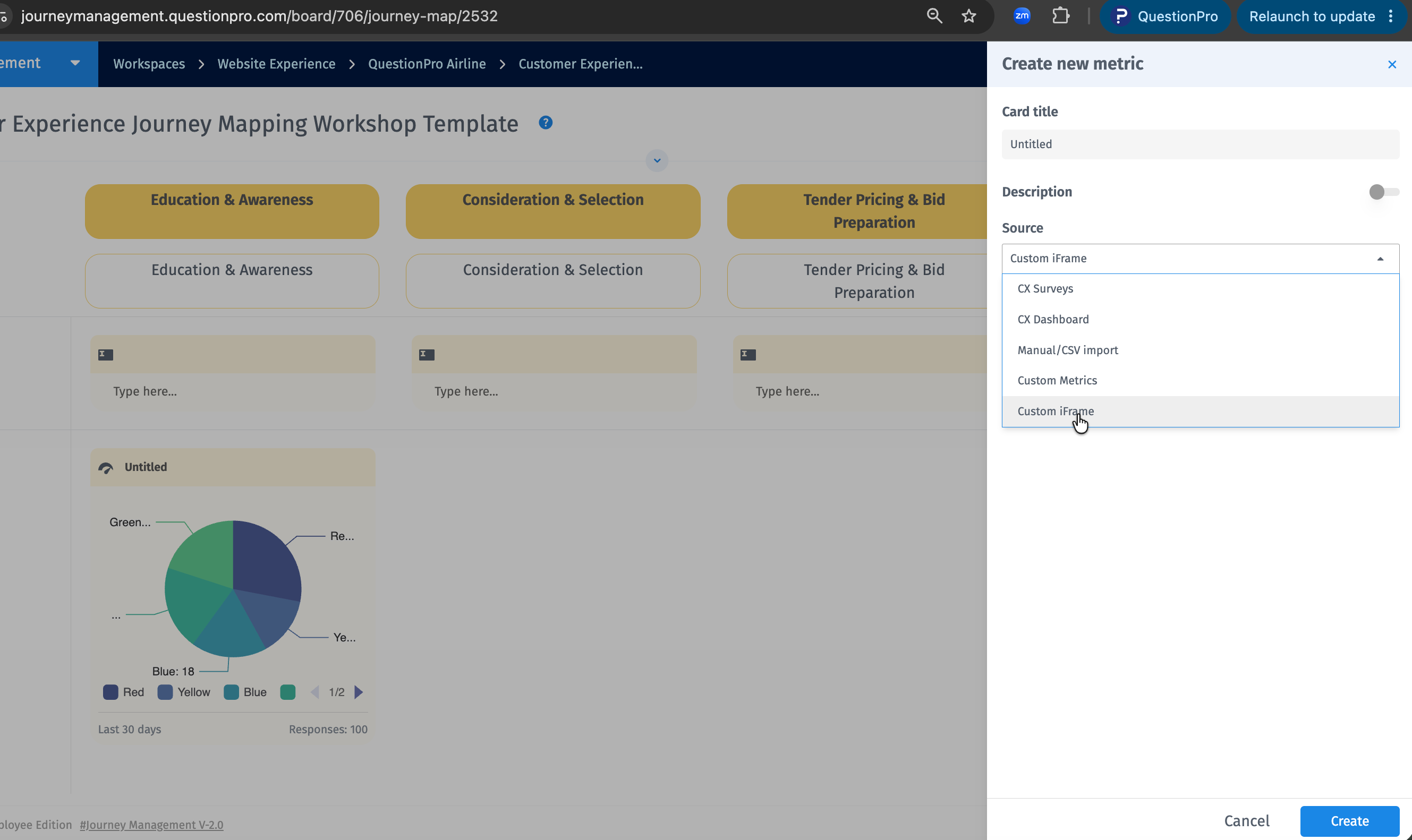
- Select the widget source: CX Dashboard or Custom Widget.
- Configure the widget by following the steps for your selected method below.
- Click Create to place the widget on your Journey Map.
Use this method to display an existing CX Dashboard widget on your Journey Map.
- Open the required Journey Map.
- Navigate to the Metrics lane and click the Add (+) button.
- Select CX Dashboard as the source.

- Select a dashboard from the same workspace as your Journey Map.
- Choose the widget you want to embed.
- Select the required date range.
- Click Create to complete the configuration.
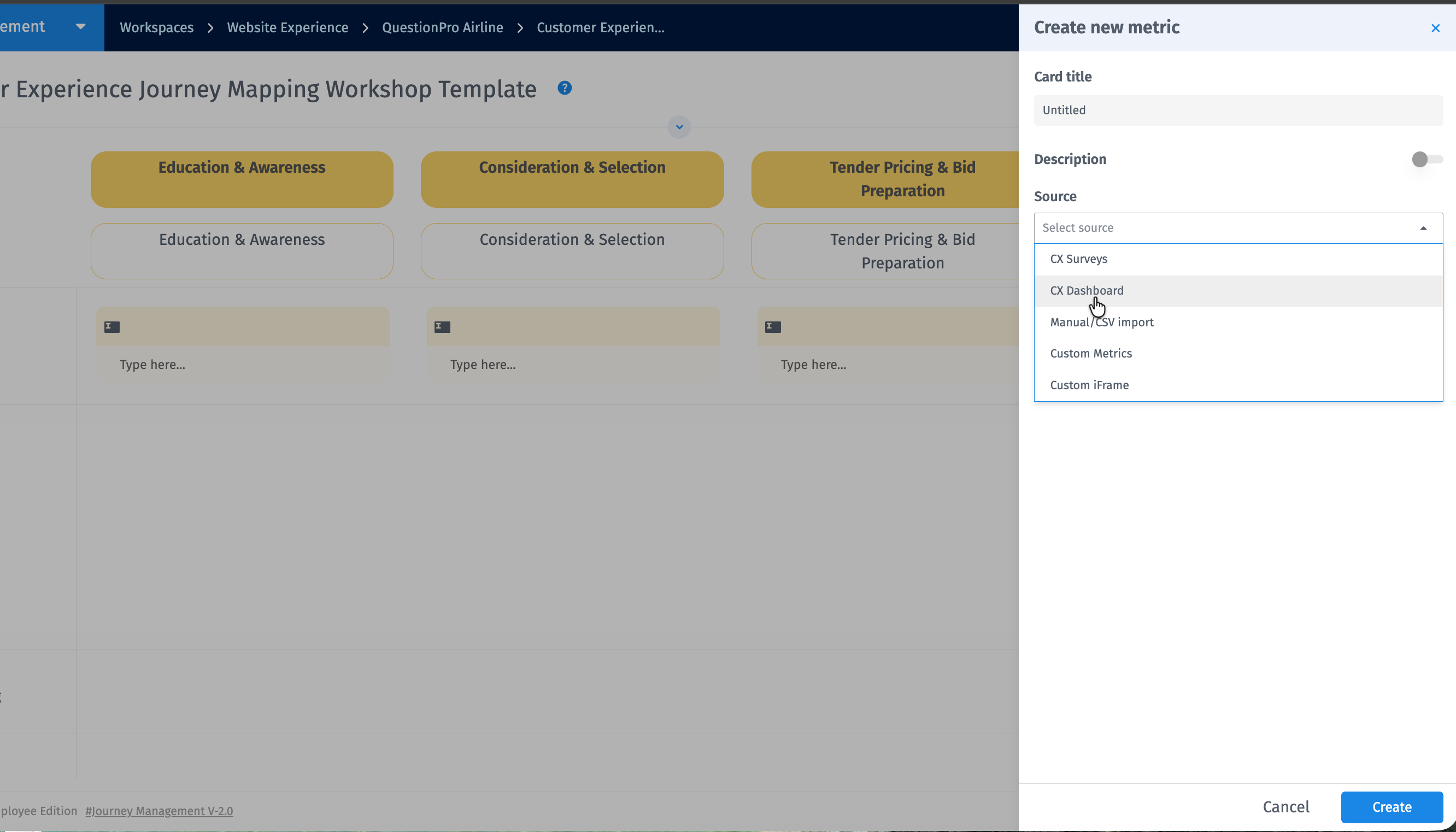
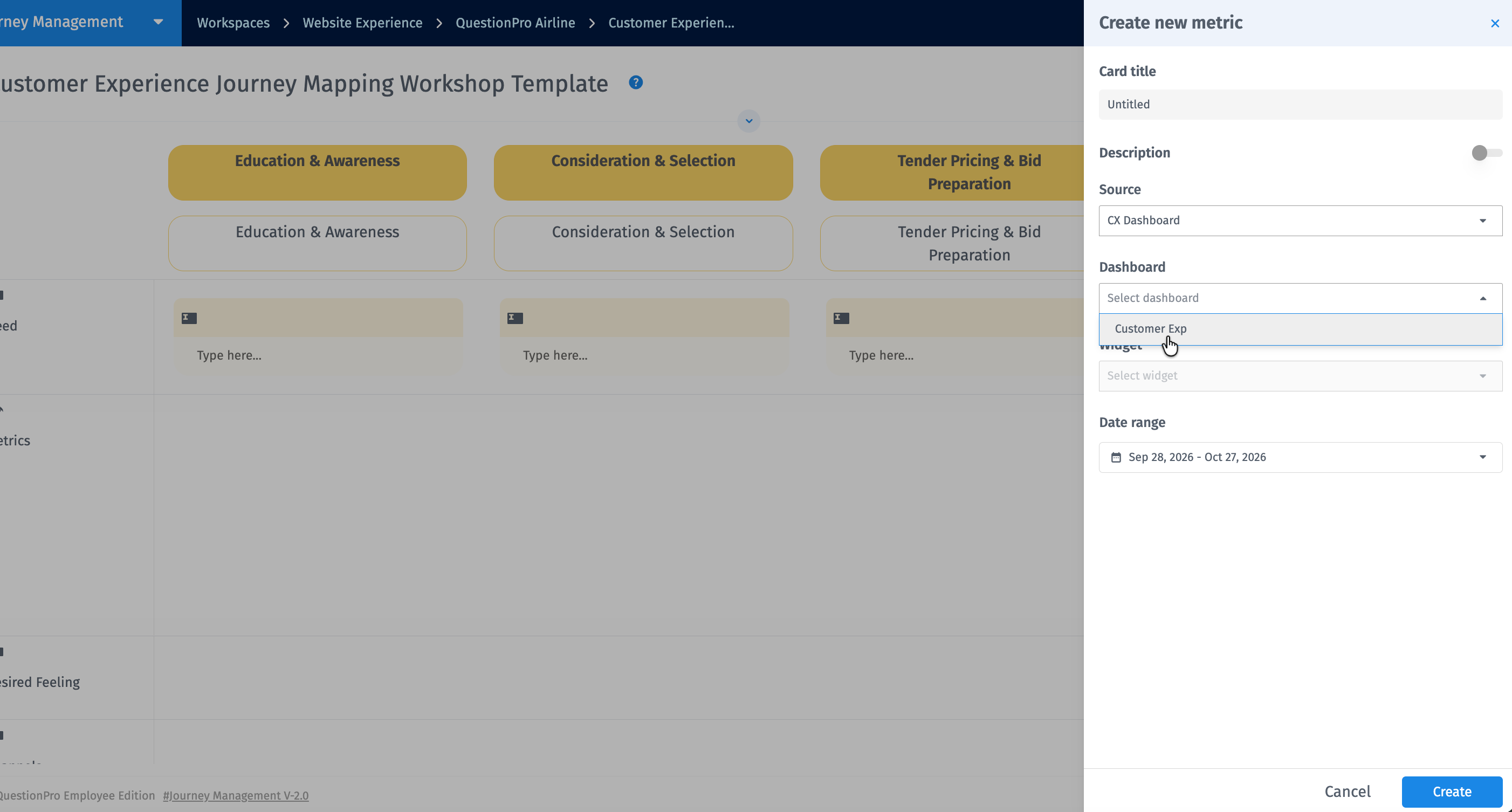
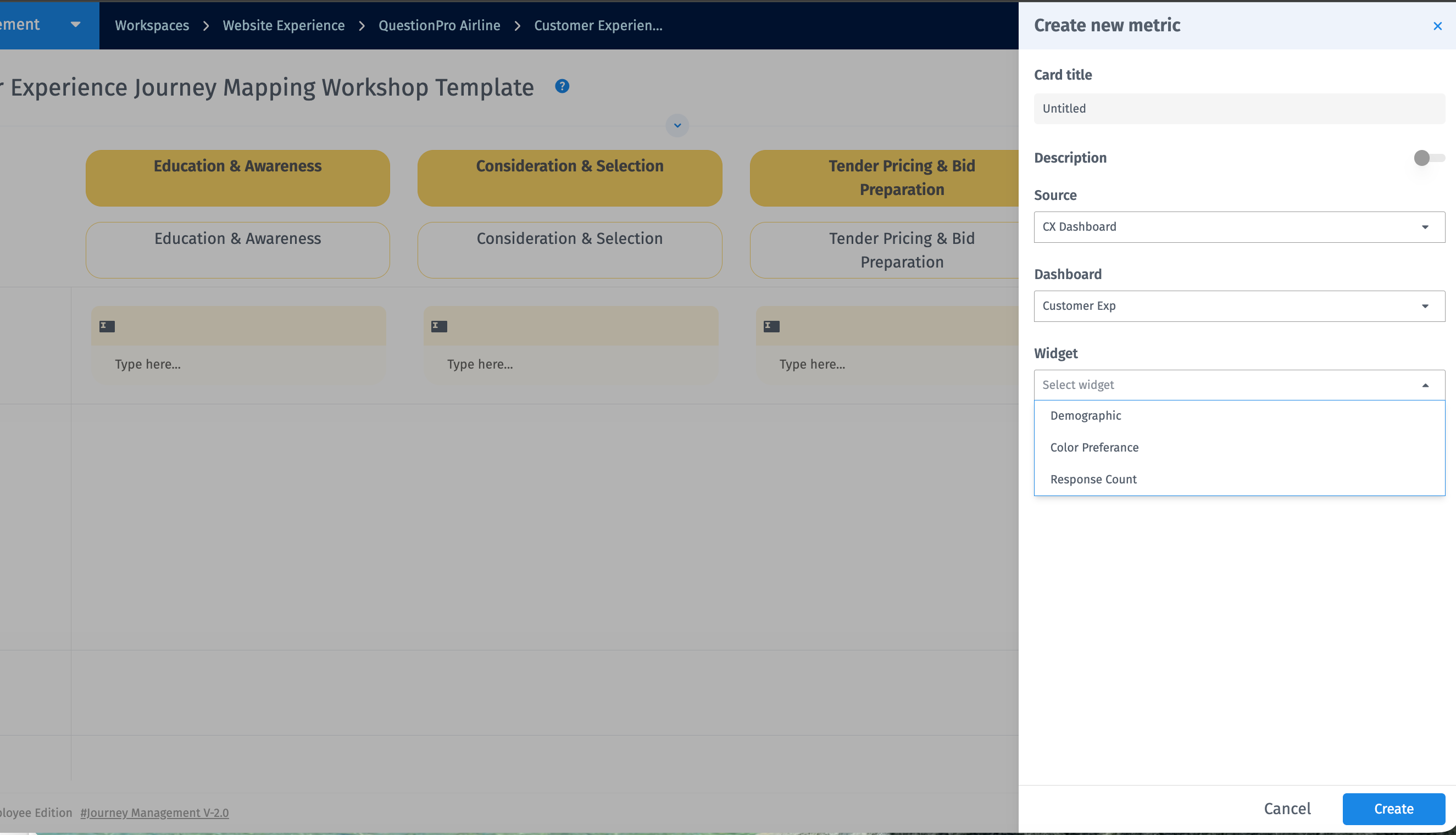
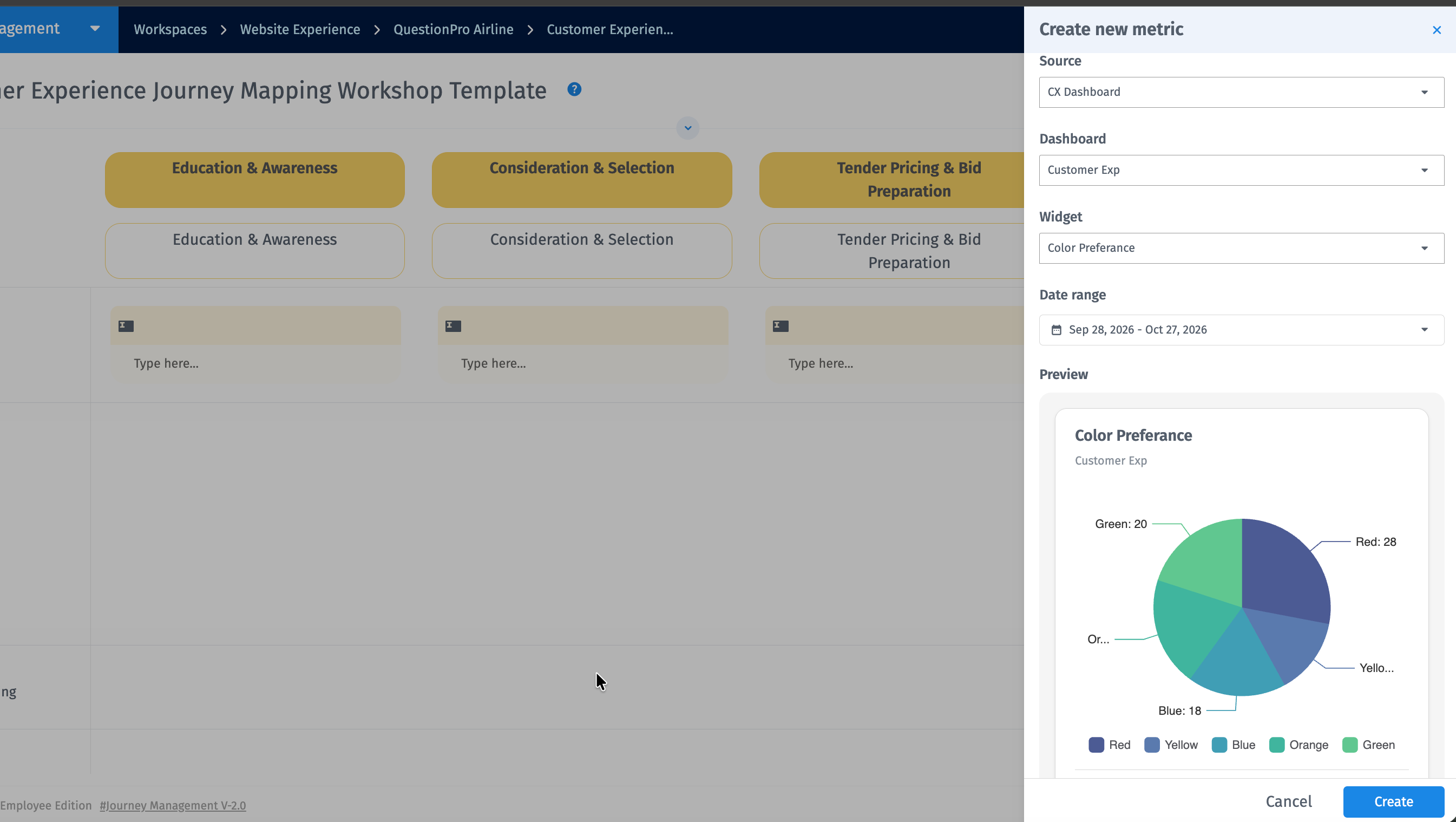
The selected widget appears in the Metrics lane of your Journey Map.
Note: Only dashboards from the same workspace as your Journey Map are available for selection.
Use this method to embed widgets or web content from external platforms.
- Open the required Journey Map.
- Navigate to the Metrics lane and click the Add (+) button.
- Select Custom Widget as the source.
- Enter the iframe embed code for the content you want to display.
- Complete any additional configuration shown in the interface.
- Click Add to embed the content in your Journey Map.
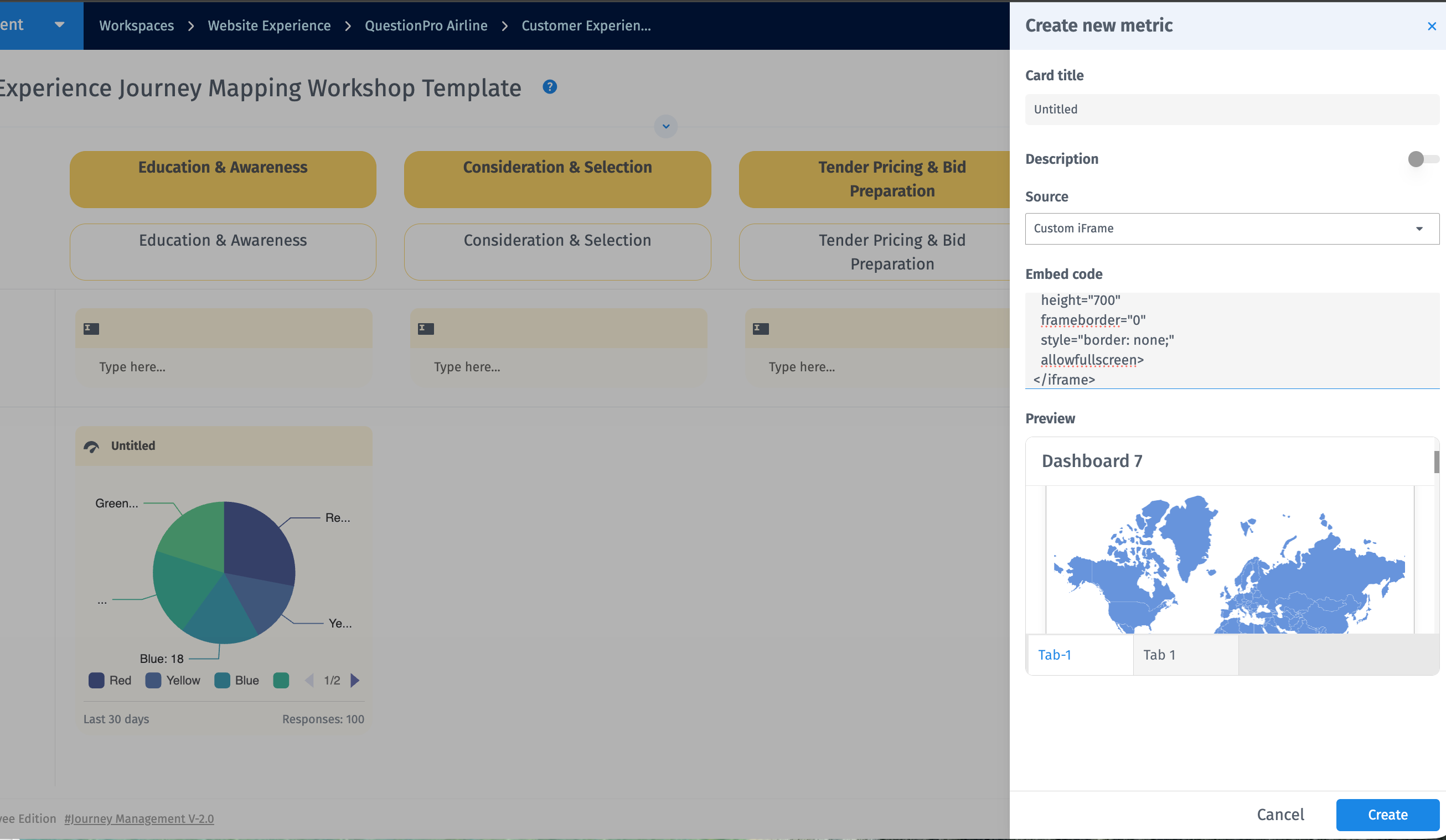
The external content is displayed in the Metrics lane using an iframe.
- Public URL: A link that can be accessed without login, authentication, or special permissions.
- Iframe embed code: The embed code provided by the external platform for its shareable content.
Whether content displays depends on the source platform's embedding policies, access permissions, and browser security restrictions.
- CX Dashboard widgets: Yes. Select the date range during configuration.
- Custom Widgets: Date controls and available data depend on the embedded content and its source platform.
- The external site blocks embedding: Some websites prevent their pages from being displayed in an iframe. The content may not load even if the URL is public. Check whether the source platform offers a dedicated embed option.
- The content requires login: Content behind authentication or restricted permissions cannot be displayed. Use a publicly shared link or embed code instead.
- The dashboard is not listed: Make sure the CX Dashboard is in the same workspace as your Journey Map.
- The Add (+) button is not visible: Make sure your Journey Map has a Metrics lane.
- Flexible embedding: Add widgets from CX Dashboards or supported external sources.
- Centralized insights: Bring relevant visualizations and content into your Journey Maps.
- Contextual analysis: View supporting data alongside journey stages and touchpoints.
- Reuse existing content: Use existing dashboard widgets or externally hosted content without recreating them in Journey Management.
Can I add widgets from sources other than CX Dashboard?
Yes. Use the Custom Widget option to embed supported content using a publicly accessible URL or iframe embed code.
Do I need to create a new CX Dashboard to add a dashboard widget?
No. You can select any existing CX Dashboard from the same workspace as your Journey Map.
Can I choose a specific widget from a CX Dashboard?
Yes. Select the dashboard, then choose the widget you want to display.
Can I specify a date range?
Yes, for CX Dashboard widgets. For Custom Widgets, date filtering depends on the source content.
Can I embed any public URL?
Not necessarily. The source must allow iframe embedding. Sites that block embedding or require authentication will not display.
Where does the widget appear in the Journey Map?
In the Metrics lane.
