

- Community Settings
- Survey Opt-Out for Members
- Security
- Facebook setup
- LinkedIn setup
- Google setup
- Twitch setup
- Social login
- Mobile app - privacy policy
- HMAC
- External passback
- Google Analytics
- Survey swipe
- Communities Authentication - SAML SSO
- Merge all Pending Surveys
- Regional Sign Ups
- User Roles and Permissions
- Data Sharing Options
- Login Authentication
- Global community member profile
- Profiling surveys
- Default surveys
- Global community profile - settings
- Hidden field
- Move profile fields
- Profile fields - survey integration
- Profile sync
- Confidence score
- Import Profile Data
- Profile Groups
- Default Surveys 2.0
- Profiling Surveys 2.0
- Member Profile Fields 2.0
- Send new invitation
- Multiple Responses (Email/SMS)
- SMS pricing
- Survey authentication
- Send Invitation Multilingual
- New invitation profile exclusion
- Custom filter by member ID
- Send later
- Profile field mapping
- Automatic Closure
- Survey Alias
- AI create
- Community WhatsApp Integration
- Whatsapp Integration for Community

WhatsApp integration in Communities
The WhatsApp integration in QuestionPro Communities allows you to connect your Meta WhatsApp Business account and use WhatsApp as a communication channel for distributing surveys to community members.
Community administrators can create Meta-approved WhatsApp message templates, personalize messages using member variables, include survey links, select community members, distribute survey invitations, and monitor WhatsApp delivery activity.
The WhatsApp survey distribution workflow includes the following steps:
- Connect your WhatsApp Business account.
- Create and submit a WhatsApp message template.
- Wait for the template to be approved by Meta.
- Select a survey and WhatsApp template.
- Select community members.
- Send the survey through WhatsApp.
- Monitor delivery using WhatsApp Logs.
Before sending surveys through WhatsApp, connect your Meta WhatsApp Business account to QuestionPro.
To configure the WhatsApp integration:
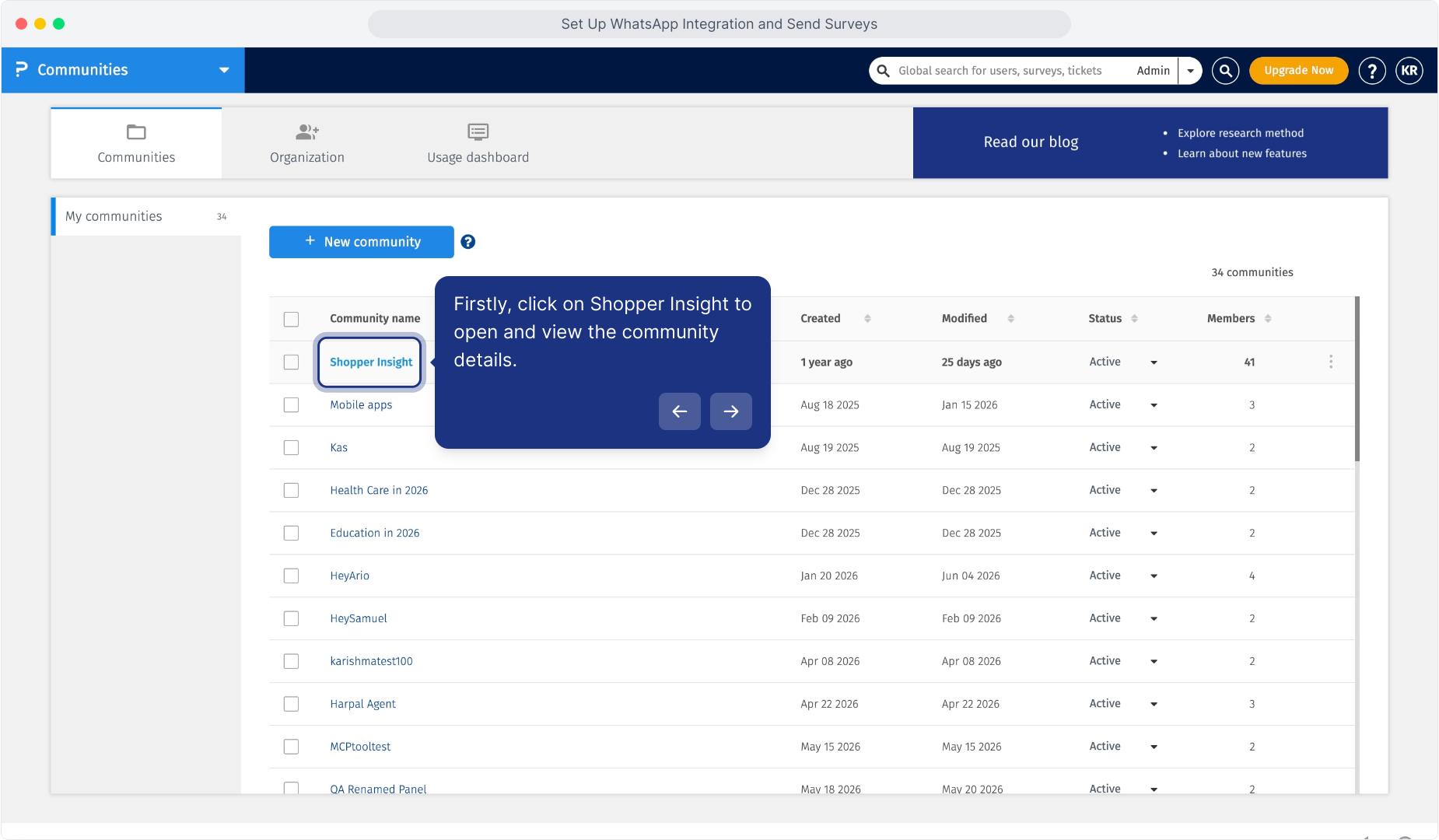
- Log in to QuestionPro and open Communities.
-
Open the community you want to manage.

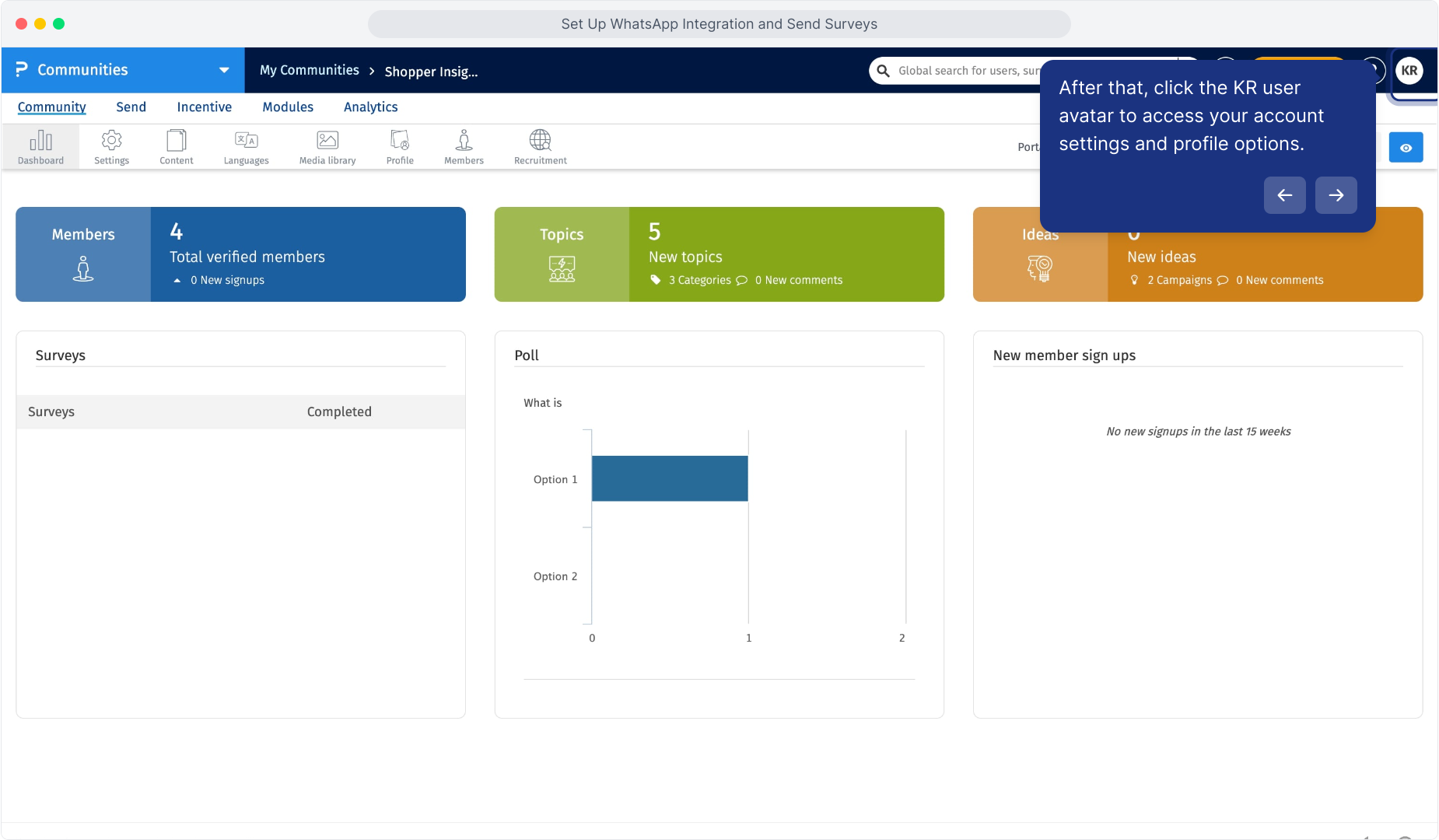
- Click your profile avatar in the upper-right corner.
-
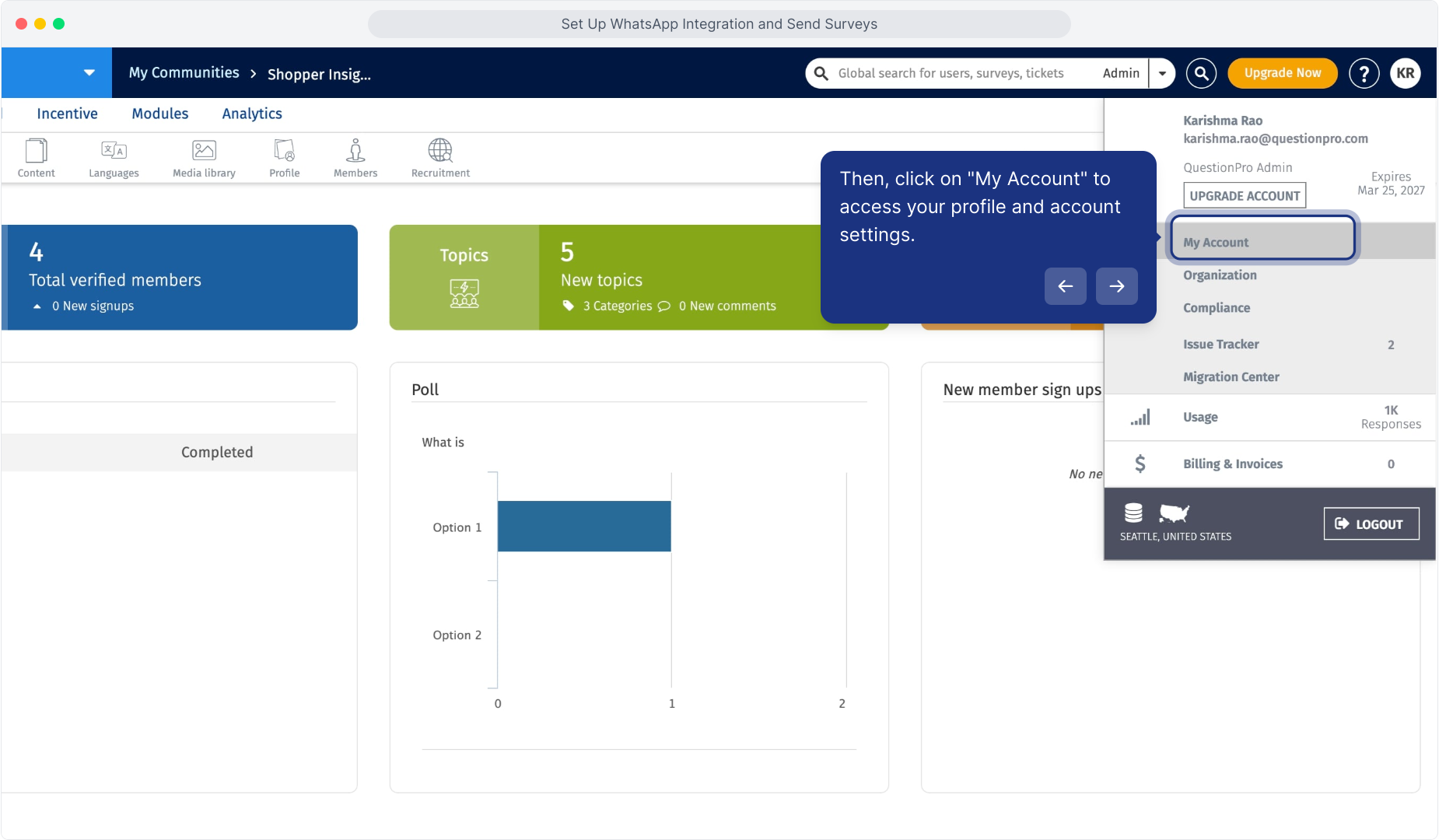
Click My Account.
-
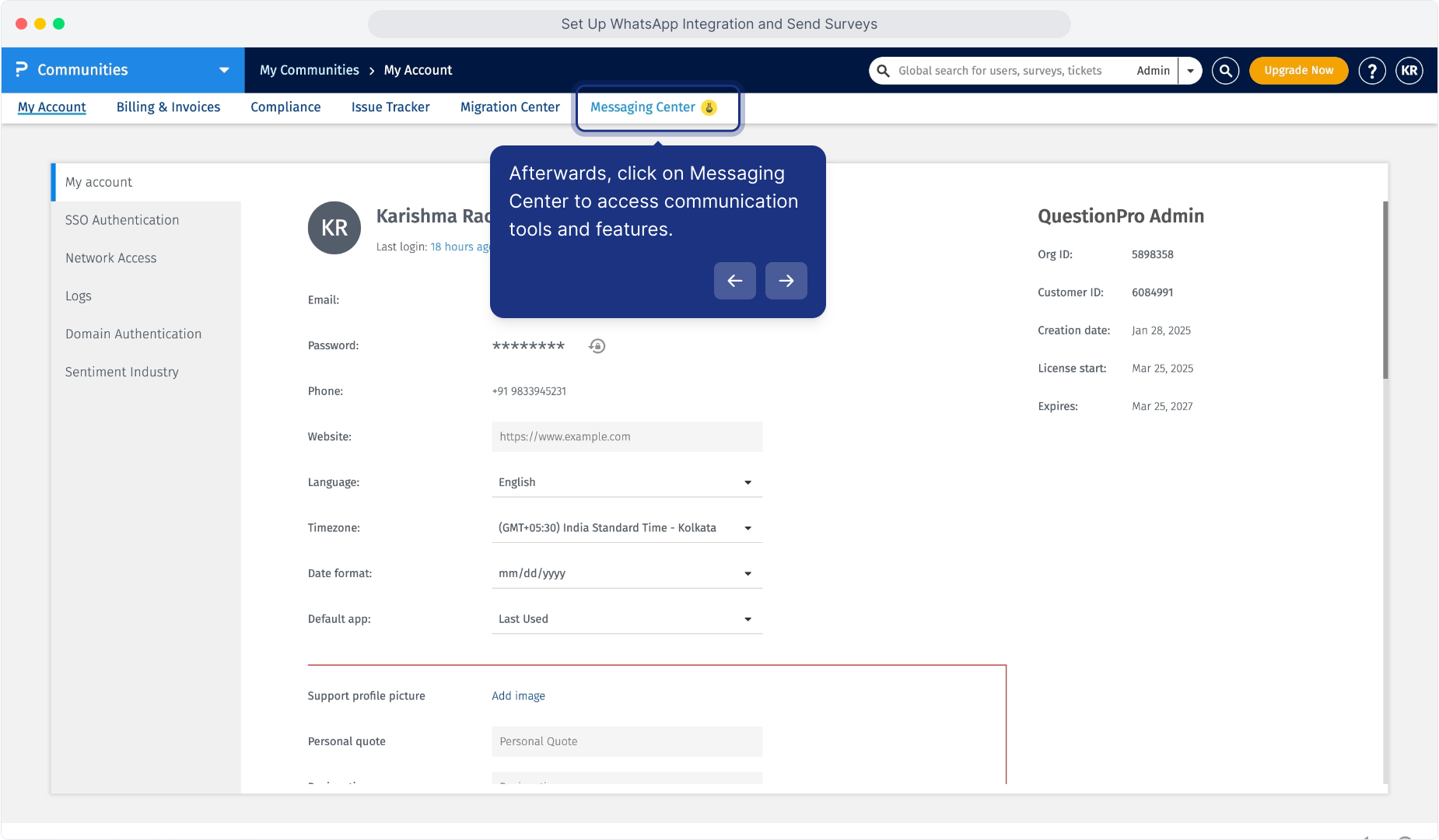
Open the Messaging Center.
- Open the Credentials tab.
- Enter the required Meta WhatsApp Business API credentials.
The following credentials are required:
-
Phone Number ID
Enter the Phone Number ID associated with your WhatsApp Business phone number.
-
Access Token
Enter the access token generated for your WhatsApp Business integration.
-
WhatsApp Business Account ID
Enter the WhatsApp Business Account ID associated with your Meta business account.
-
Meta App ID
Enter the Meta App ID associated with the application used for the WhatsApp integration.
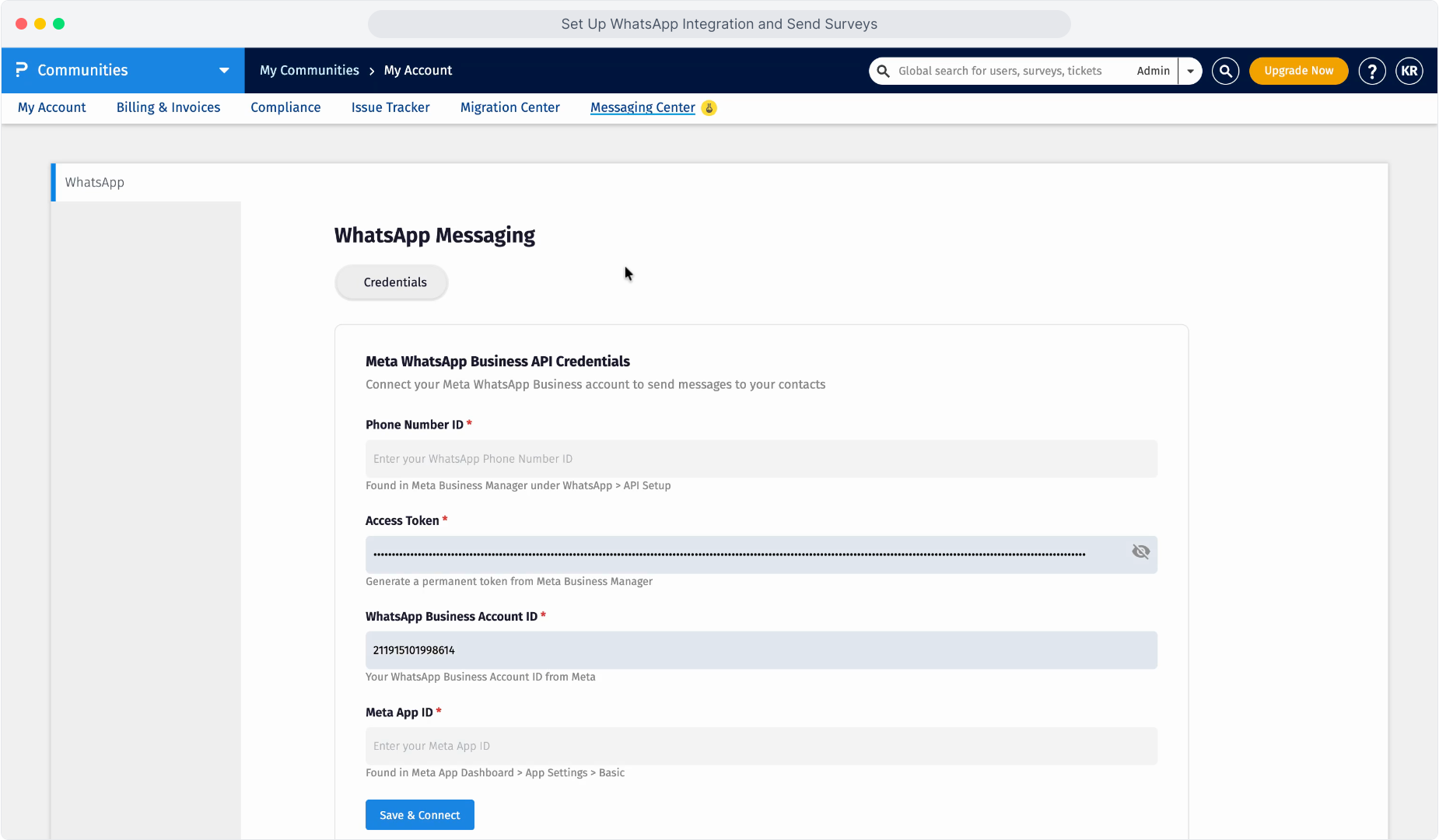
After entering the credentials, click Save and Connect.
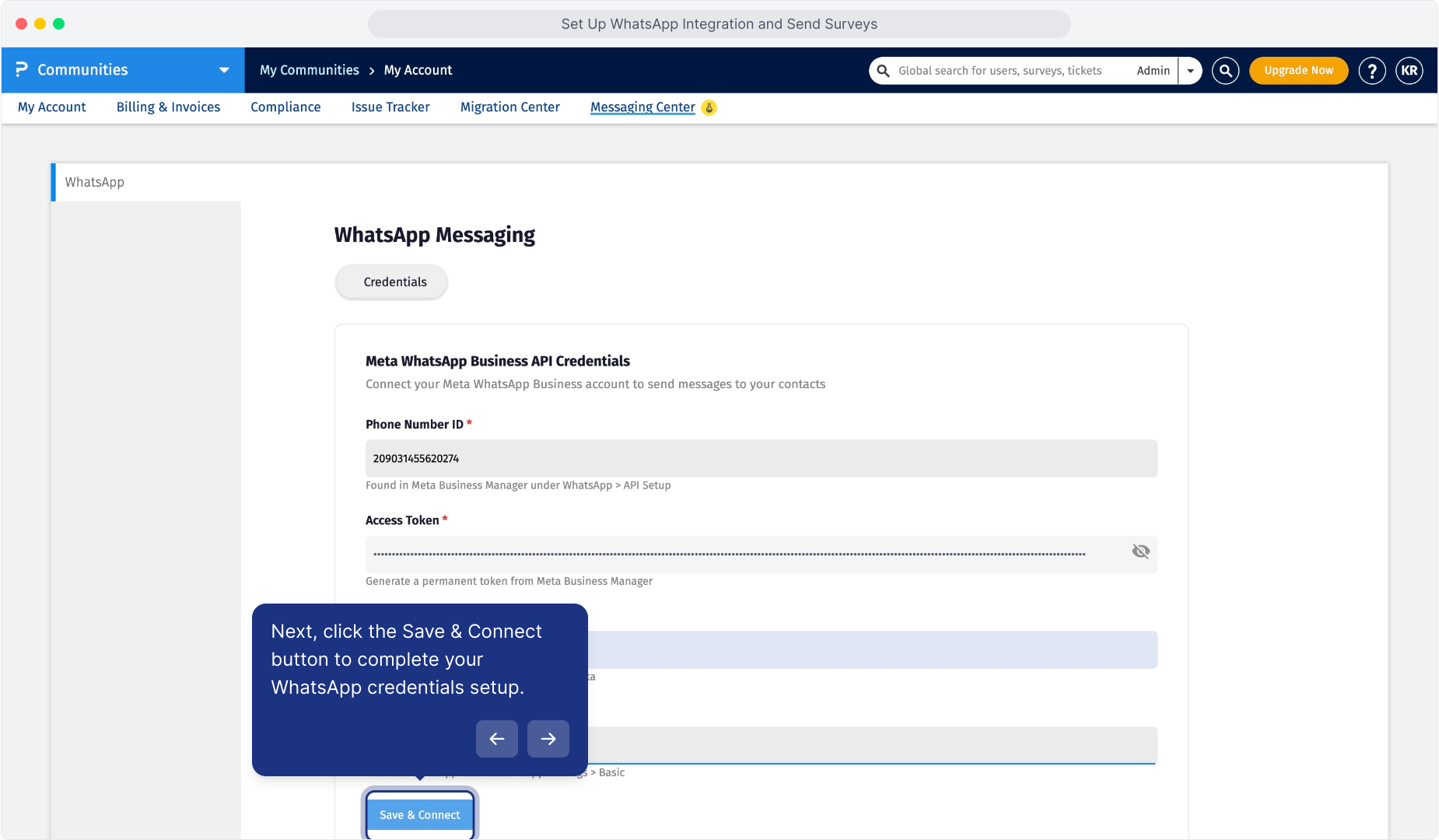
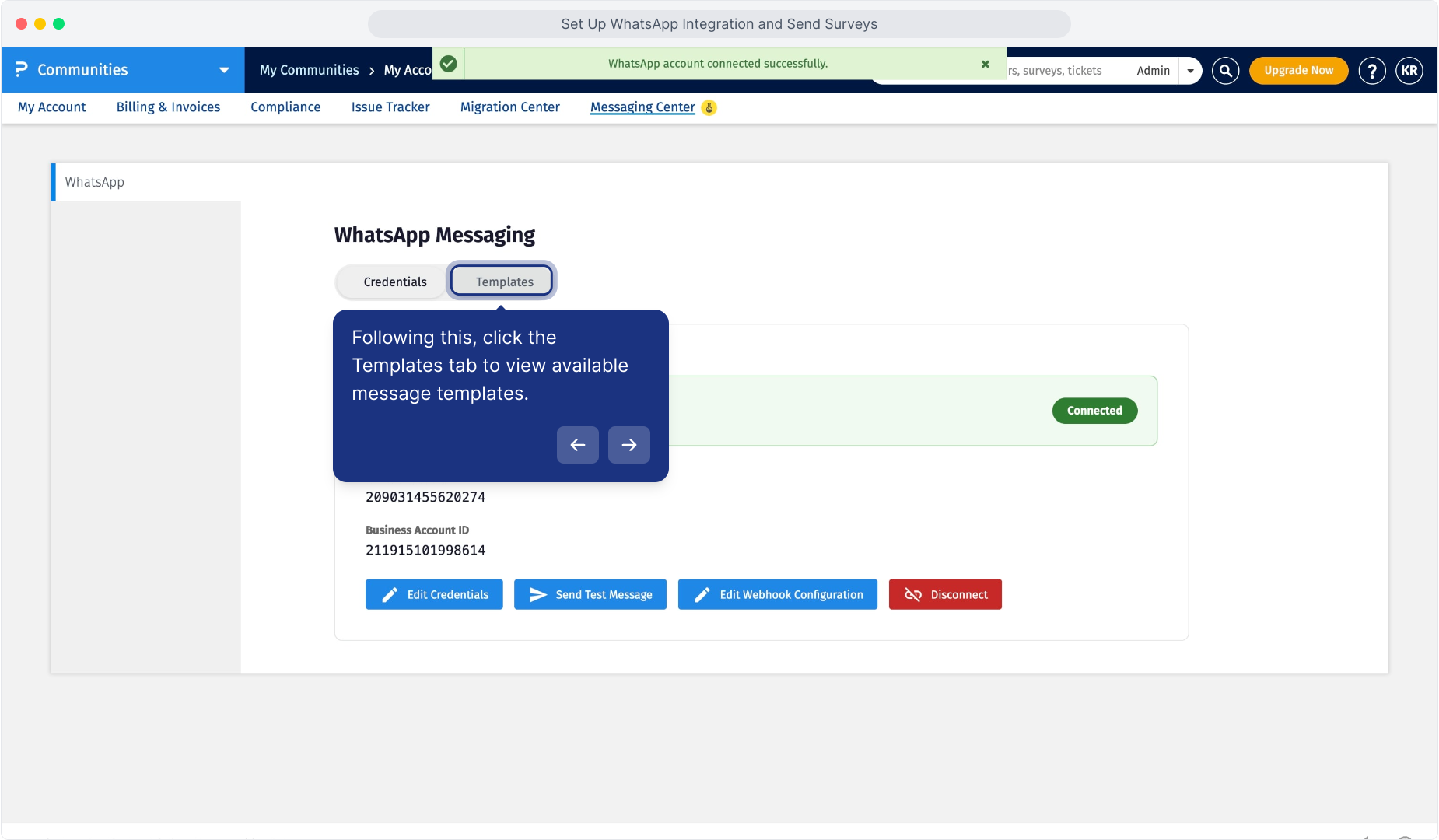
Once the connection is successful, the WhatsApp account displays a Connected status.
You need the following information from your Meta WhatsApp Business configuration:
- Phone Number ID
- Access Token
- WhatsApp Business Account ID
- Meta App ID
These details are available within your Meta Business and WhatsApp API configuration.
Make sure the credentials belong to the WhatsApp Business account you intend to use for sending messages from QuestionPro.
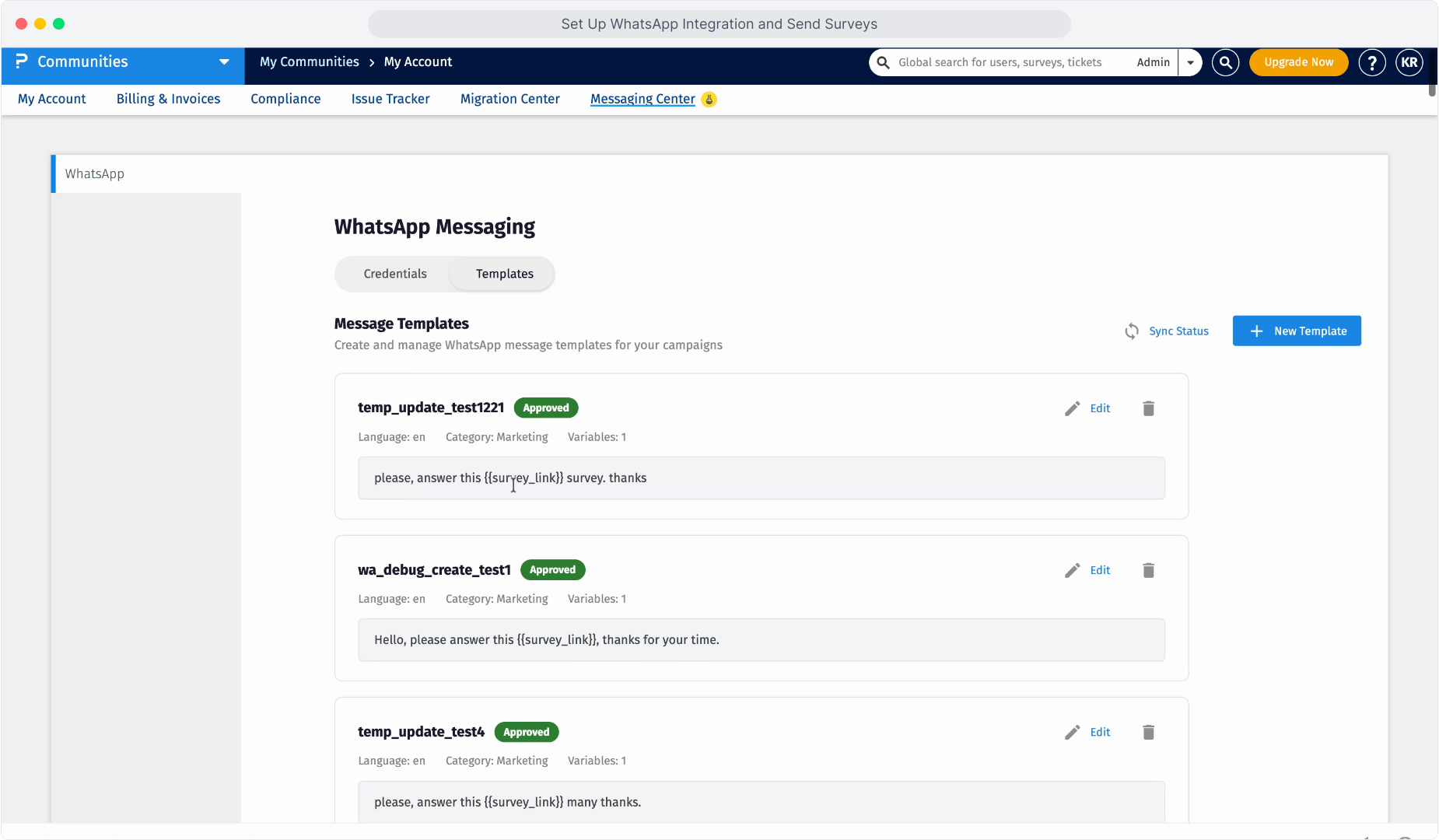
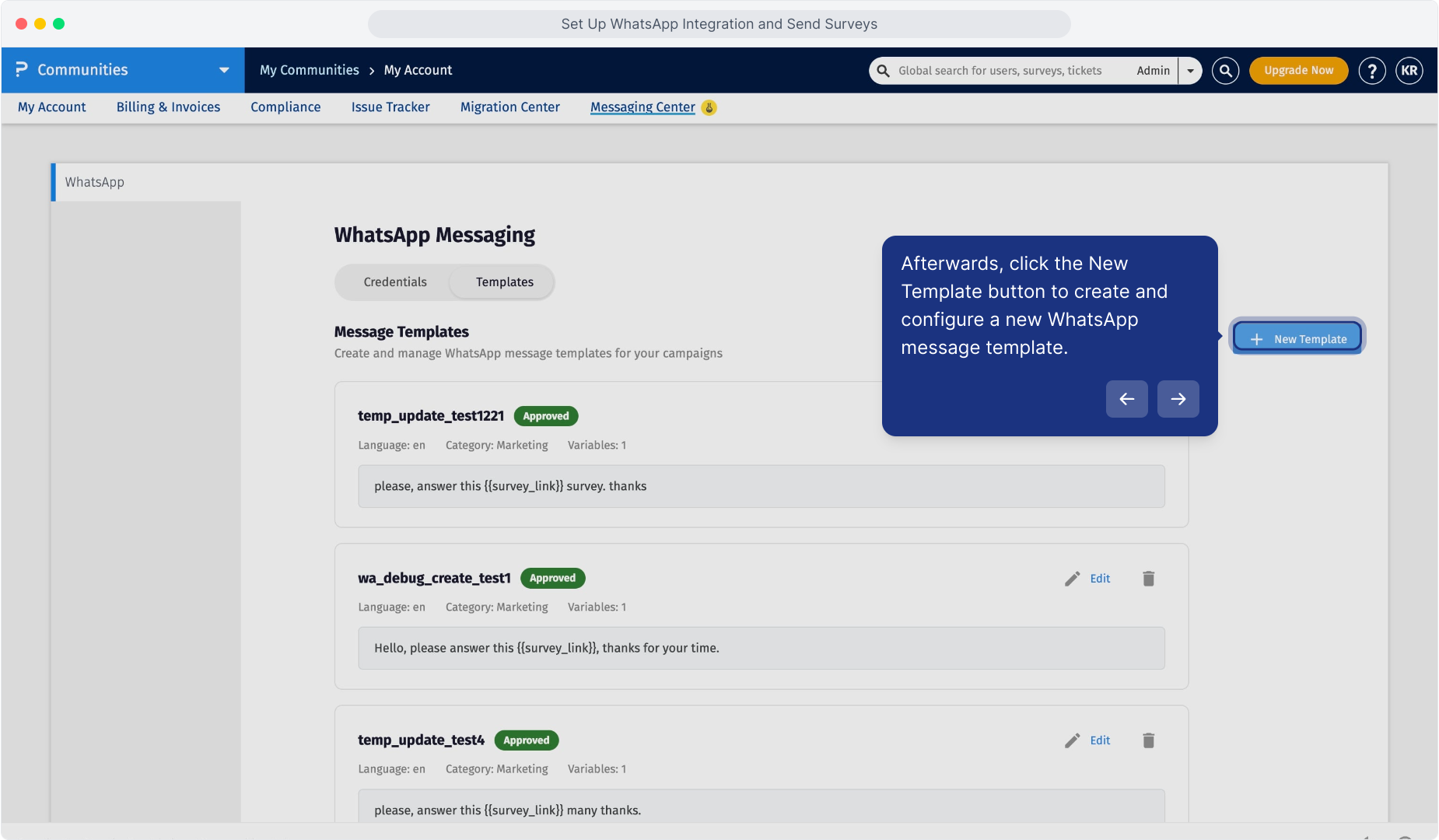
After successfully connecting your WhatsApp Business account, you can create WhatsApp message templates for survey distribution.
- Navigate to My Account > Messaging Center.
-
Open the Templates tab.
- Click + New Template.
Configure the following fields:
-
Product
Select the QuestionPro product associated with the template.
Once the template is created, the product cannot be changed.
-
Template Name
Enter a name for the template.
Template names can contain lowercase letters, numbers, and underscores.
-
Category
Select the category that best describes the purpose of your WhatsApp message.
-
Language
Select the language in which the WhatsApp message will be sent.
Create separate templates when messages need to be sent in different languages.
-
Header (Optional)
Add a header to the WhatsApp message if required.
Available header options include:
- None
- Text
- Image
- Location
-
Message Body
Enter the main WhatsApp message that members will receive.
You can personalize the message using supported variables.
-
Footer (Optional)
Enter optional footer text if additional information needs to appear below the message.
-
Buttons (Optional)
Add an interactive button to the WhatsApp template if required.
For survey invitations, a website button can be used to direct members to the survey.
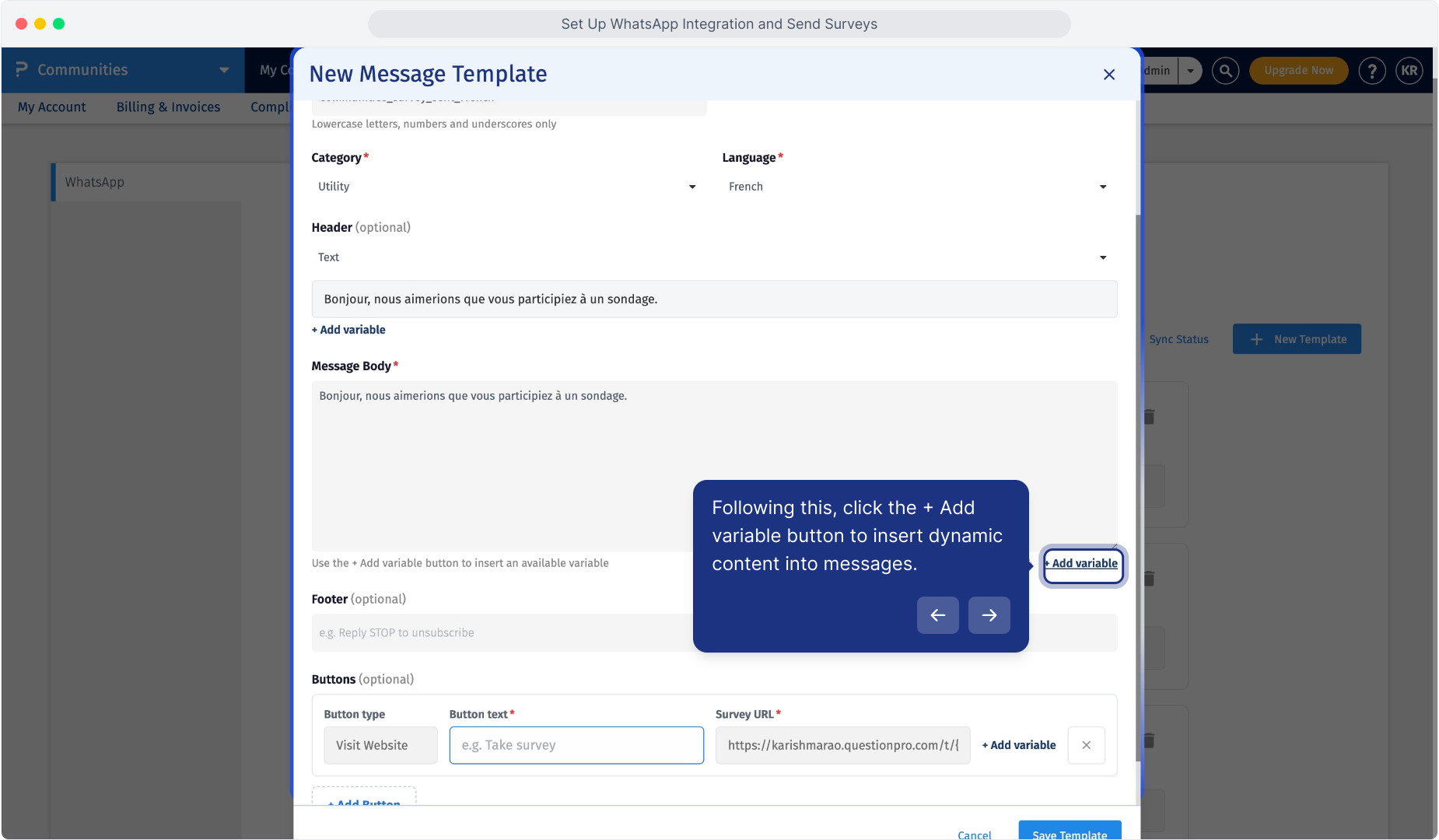
QuestionPro Communities supports variables that allow message content to be personalized when WhatsApp invitations are sent.
Click + Add variable while creating the message template to insert an available variable.
Available variables shown while configuring the survey template include:
- {{survey_link}}
- {{first_name}}
- {{last_name}}
For example:
Hello {{first_name}}, we would like to invite you to participate in a survey. {{survey_link}}
Survey invitation templates must include the survey link so members can open the survey directly from WhatsApp.
To add the survey link:
- Click inside the Message Body.
- Click + Add variable.
- Select {{survey_link}}.
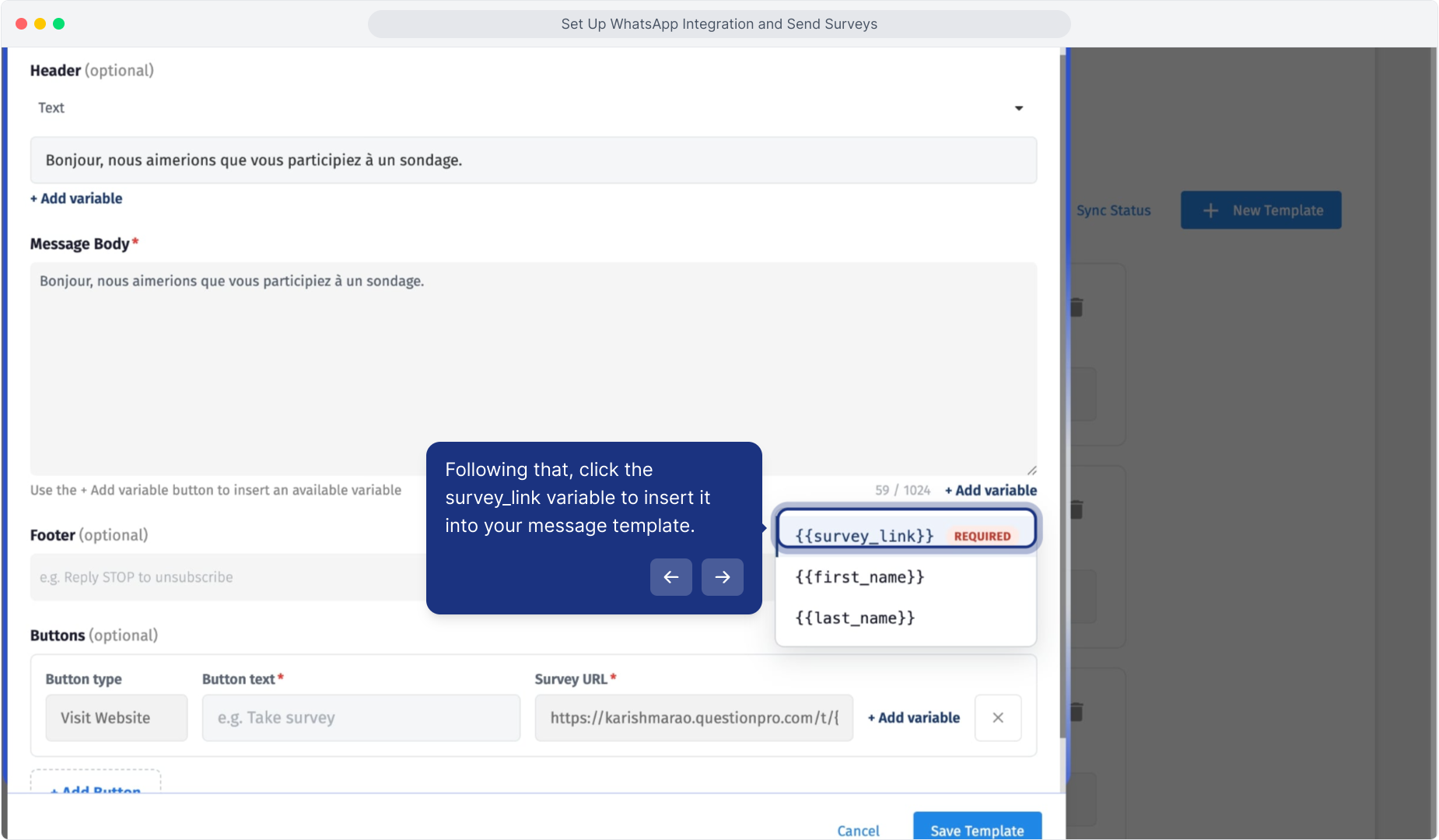
The {{survey_link}} variable is inserted into the message and is populated when the survey invitation is distributed.
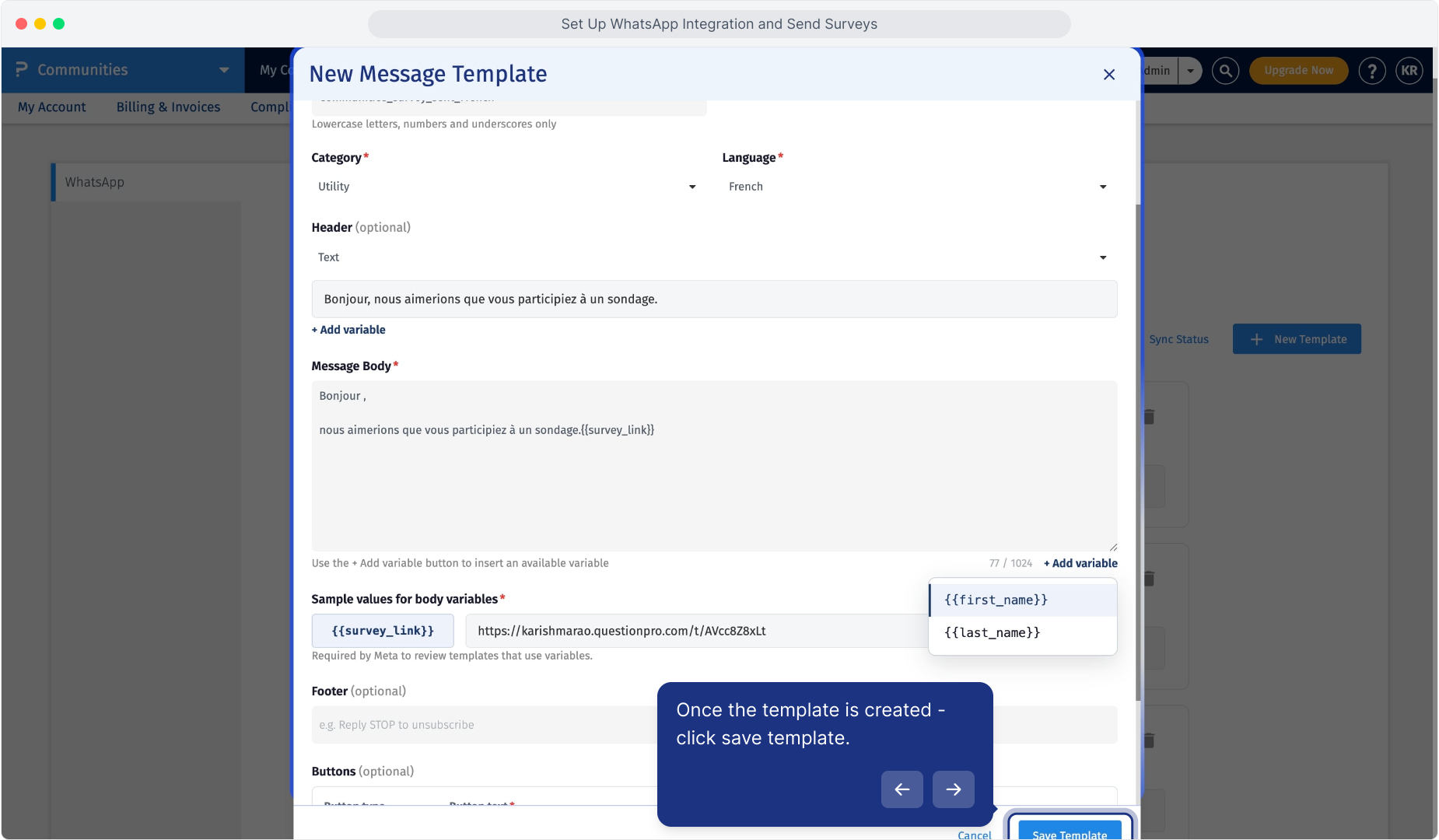
When a WhatsApp template contains variables, sample values are required so the variable content can be represented when the template is submitted for review.
For example:
- For {{first_name}}, enter an example member name.
- For {{survey_link}}, enter a sample survey URL.
Yes. You can add an optional interactive button to your WhatsApp message.
To add a button:
- Click + Add Button.
- Select the required button type.
- Enter the button text.
- Configure the survey URL or required destination.
For example, you can use a Visit Website button with text such as Take Survey.
After configuring the template, click Save Template.
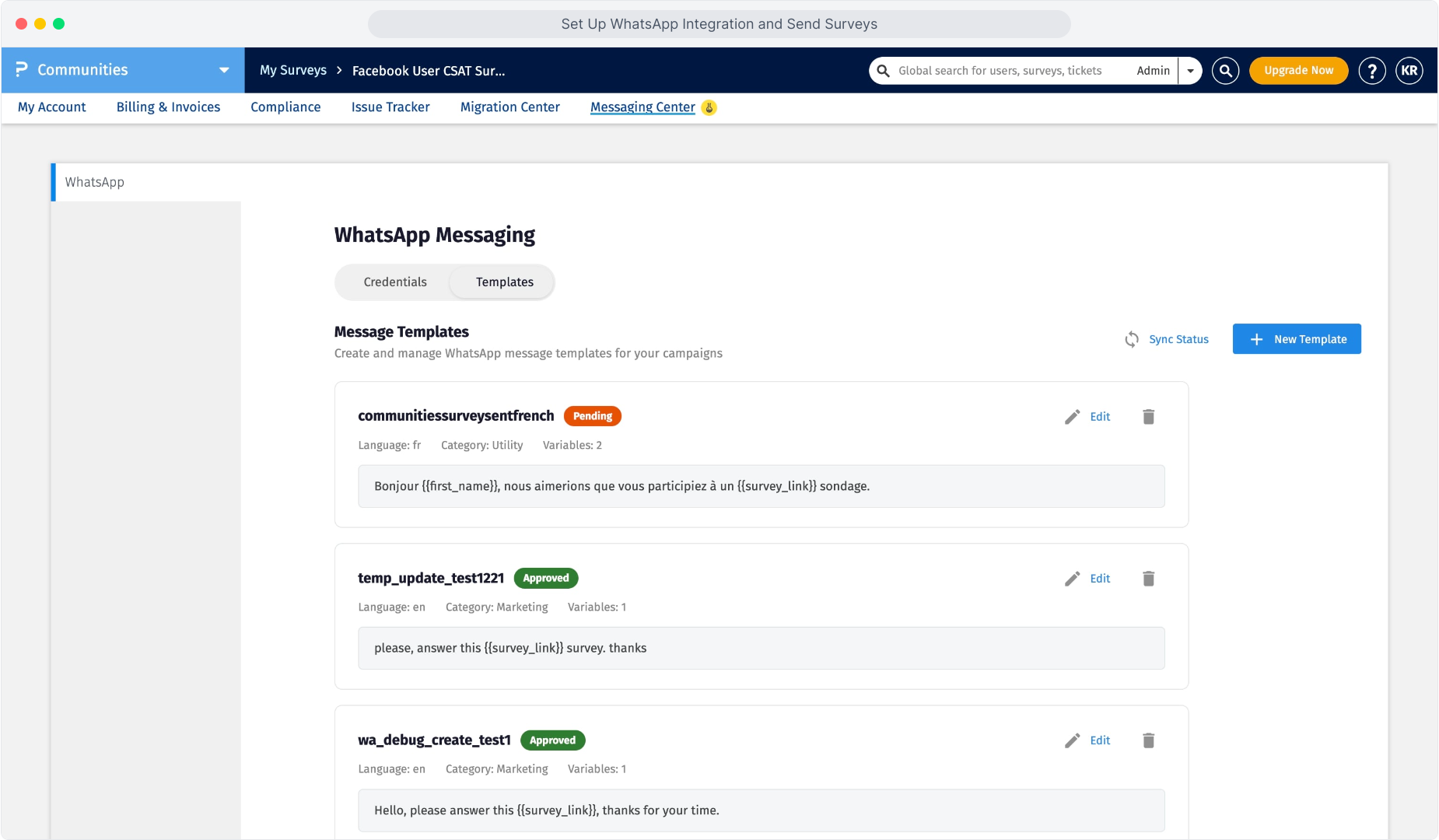
The template is submitted for approval by Meta and its status appears on the Templates page.
Template statuses may include:
-
Approved
The template has been approved and can be used for WhatsApp survey distribution.
-
Pending
The template is awaiting approval and cannot yet be used for survey distribution.
Use Sync Status to refresh the template status displayed in QuestionPro.
Once your WhatsApp Business account is connected and an approved template is available, you can distribute a survey through WhatsApp.
To send a survey:
- Open Communities.
- Select the community from which you want to send the survey.
-
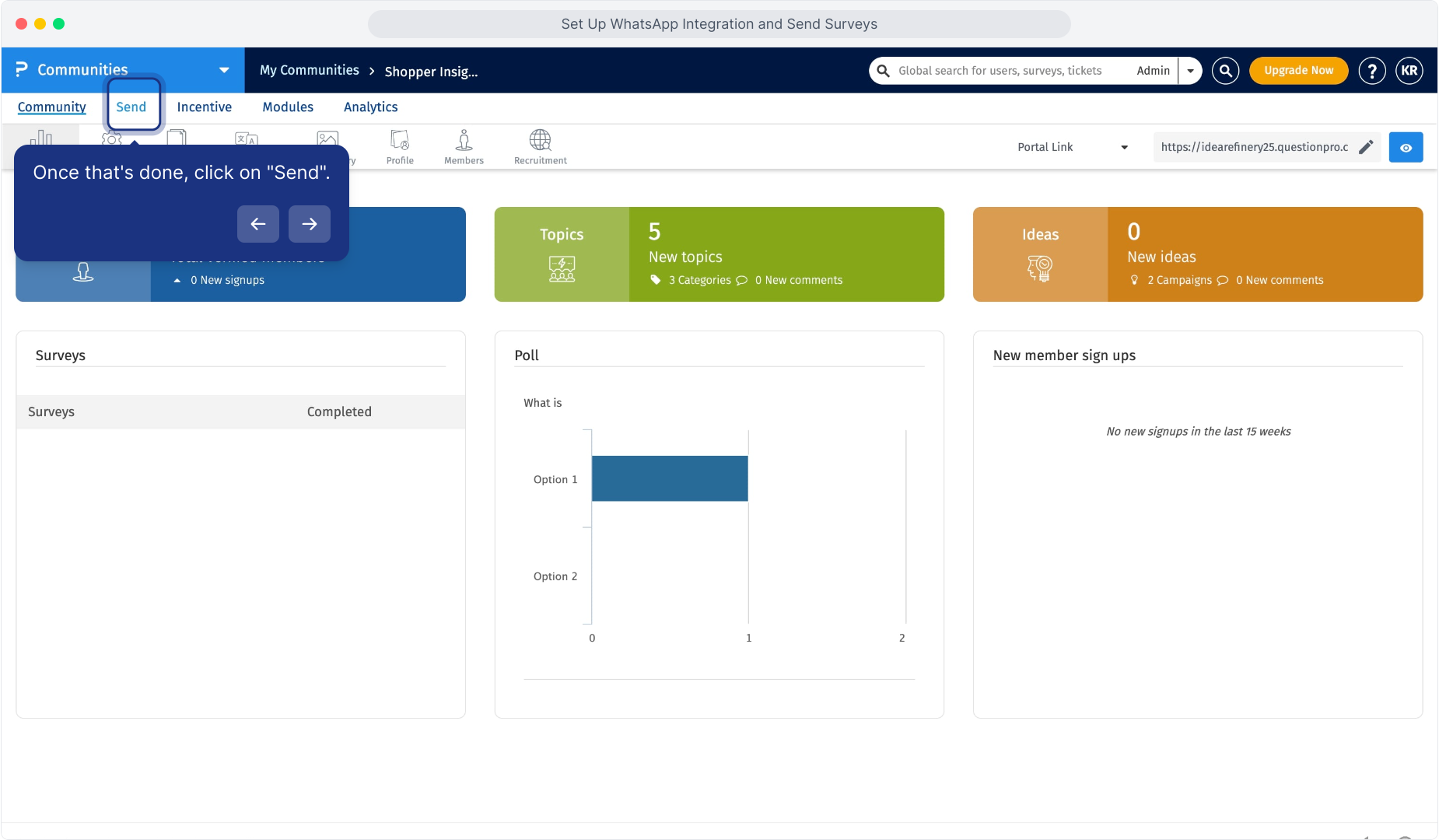
Click the Send tab.
- Select the WhatsApp tab.
-
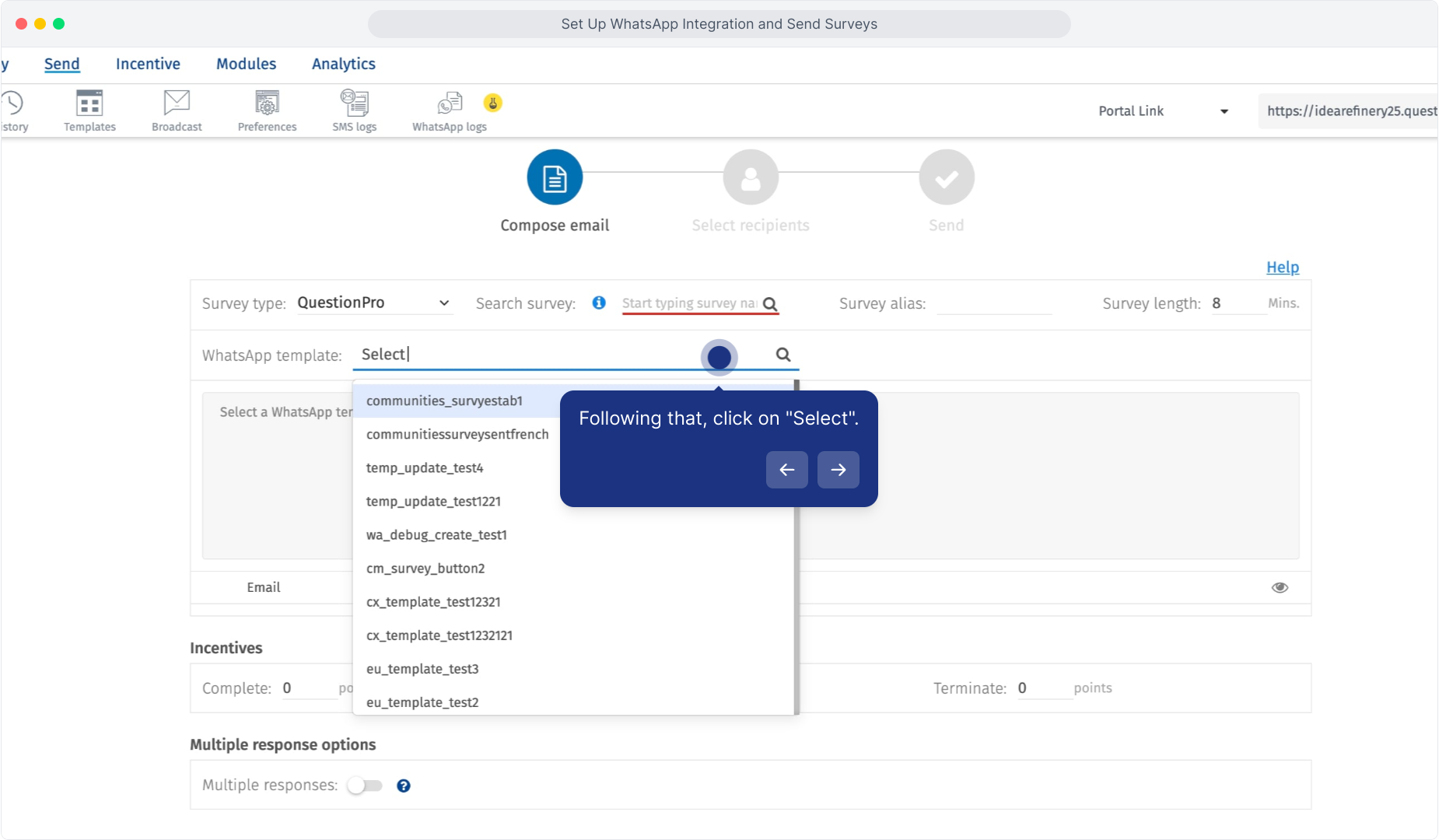
Click the WhatsApp template selection option and select the approved template you want to use.
-
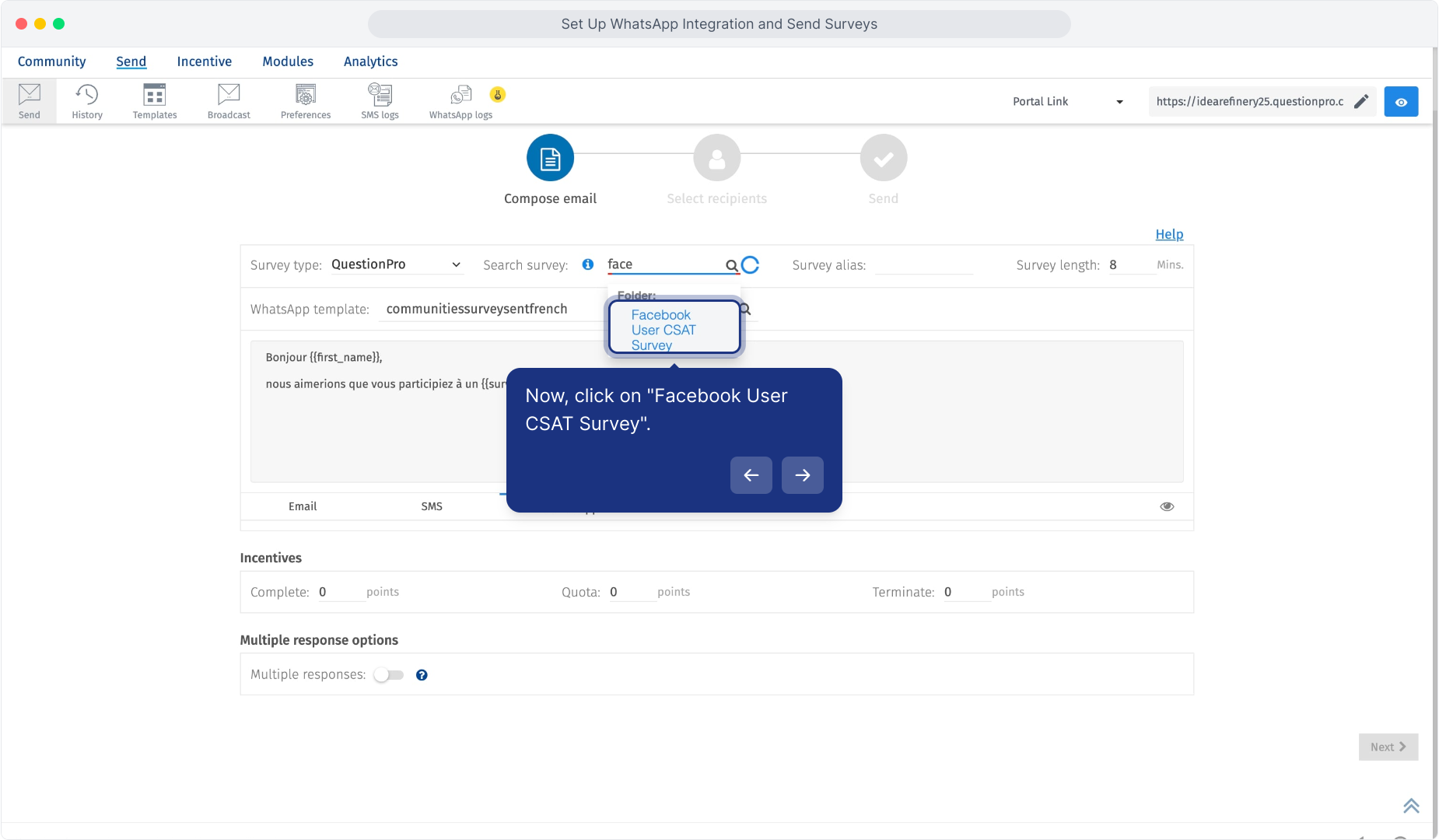
Search for and select the survey you want to distribute.
- Review the selected WhatsApp message.
- Configure survey incentives if required.
- Configure the multiple-response option if required.
- Click Next.
Yes. Survey incentives can be configured before sending the survey.
The available incentive fields include:
-
Complete
Specify the number of points awarded when a member completes the survey.
-
Quota
Specify the number of points awarded when the member reaches a quota condition.
-
Terminate
Specify the number of points awarded when a respondent is terminated from the survey, if applicable.
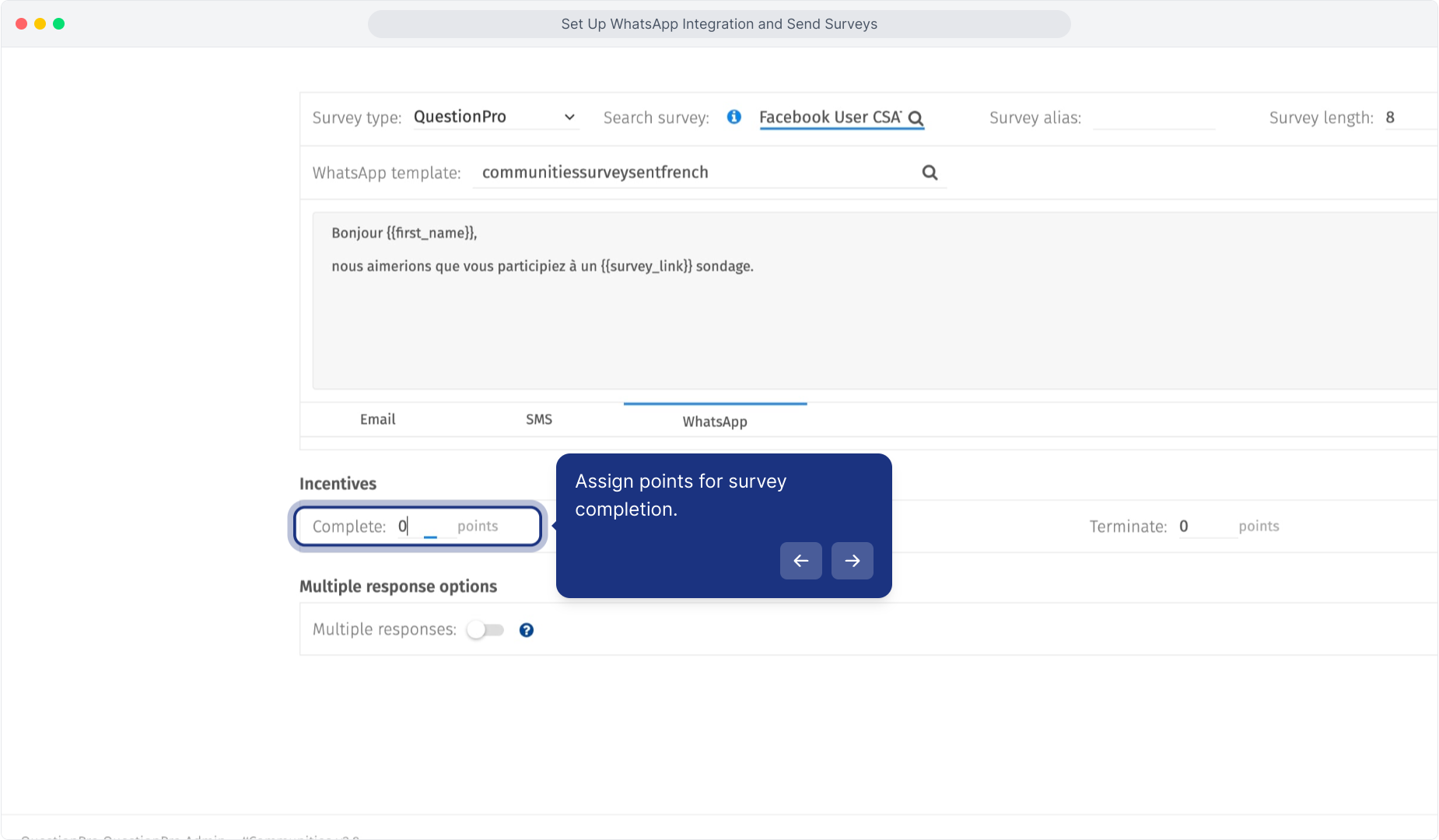
After configuring the survey and WhatsApp template, click Next to select recipients.
Members can be selected using the available filtering options:
- Custom filter
- Existing filter
- Email filter
Apply the required criteria to identify the members who should receive the survey invitation.
The Filter summary displays the number of verified recipients matching the selected criteria.
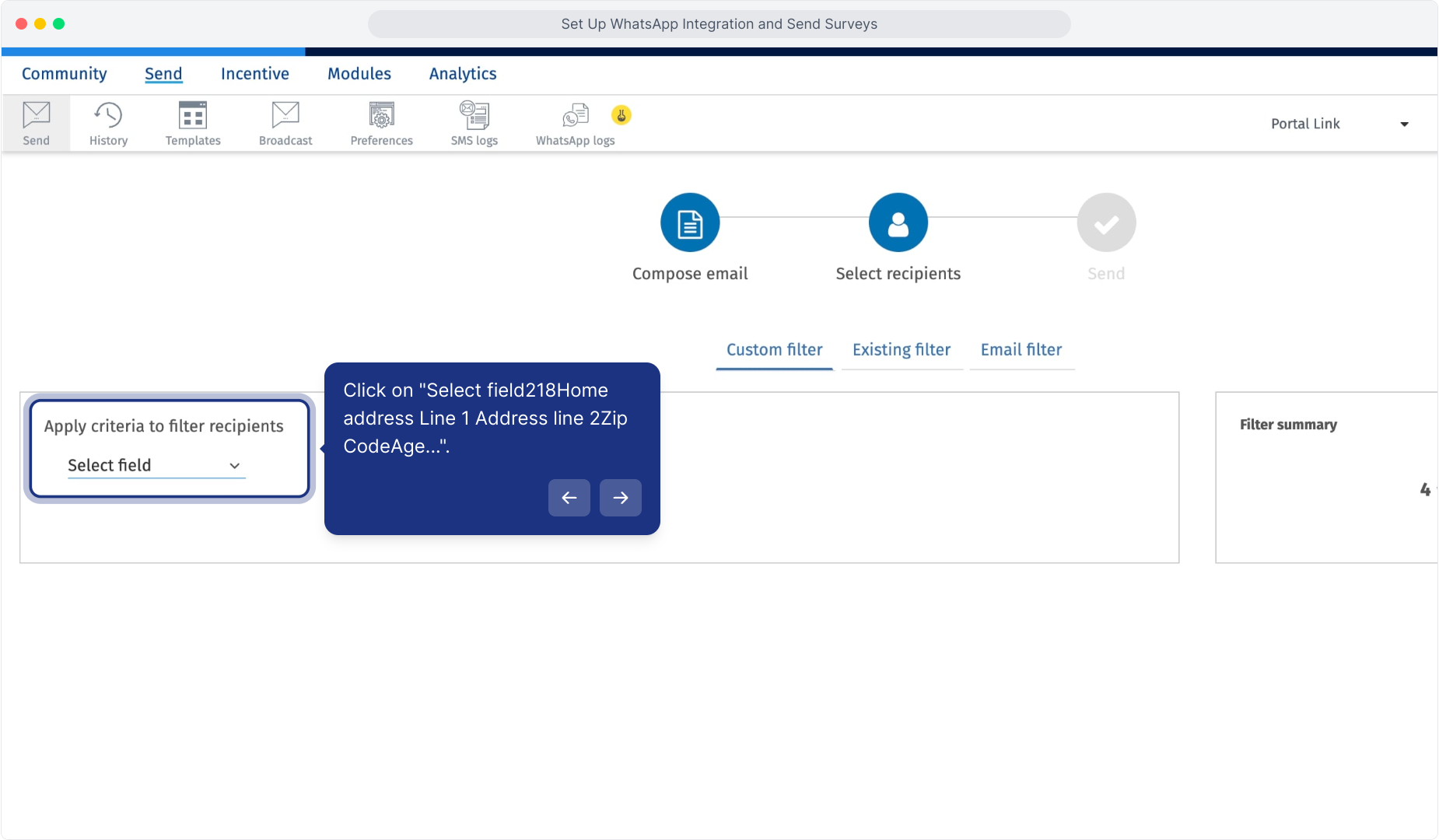
Review the recipient count and click Next.
The final step displays the survey delivery options.
Review the applicable delivery settings before sending the invitation.
Available options shown on the delivery page include:
- Send later
- Notify via email on success/failure
- Resting period rules
- Sub-sample selection
- Automatic closure
Under Notification options, enable WhatsApp.
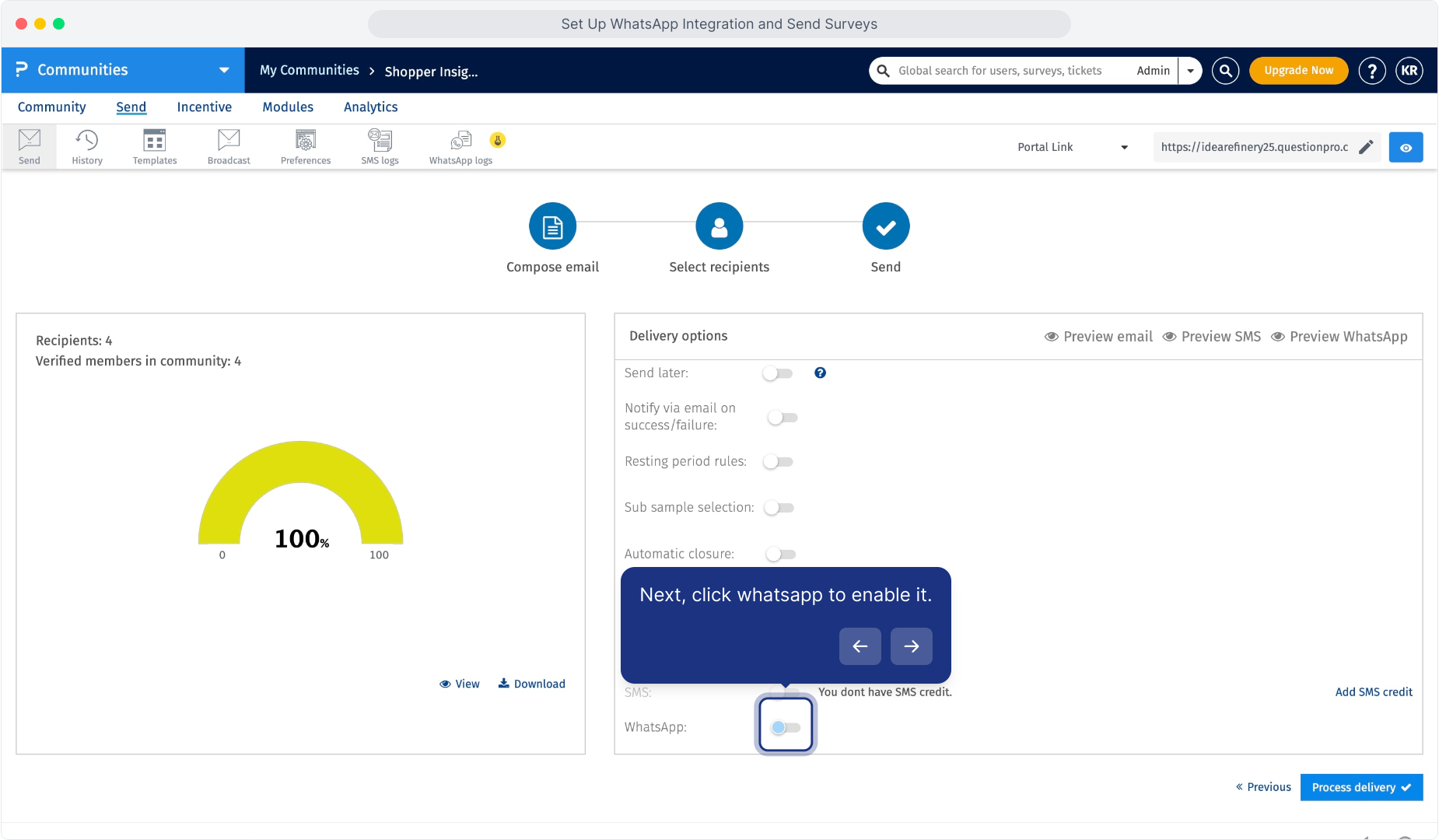
You can enable or disable the other available communication channels based on your distribution requirements.
You can also use Preview WhatsApp to review the WhatsApp message before distribution.
Once the settings have been reviewed, click Process delivery.
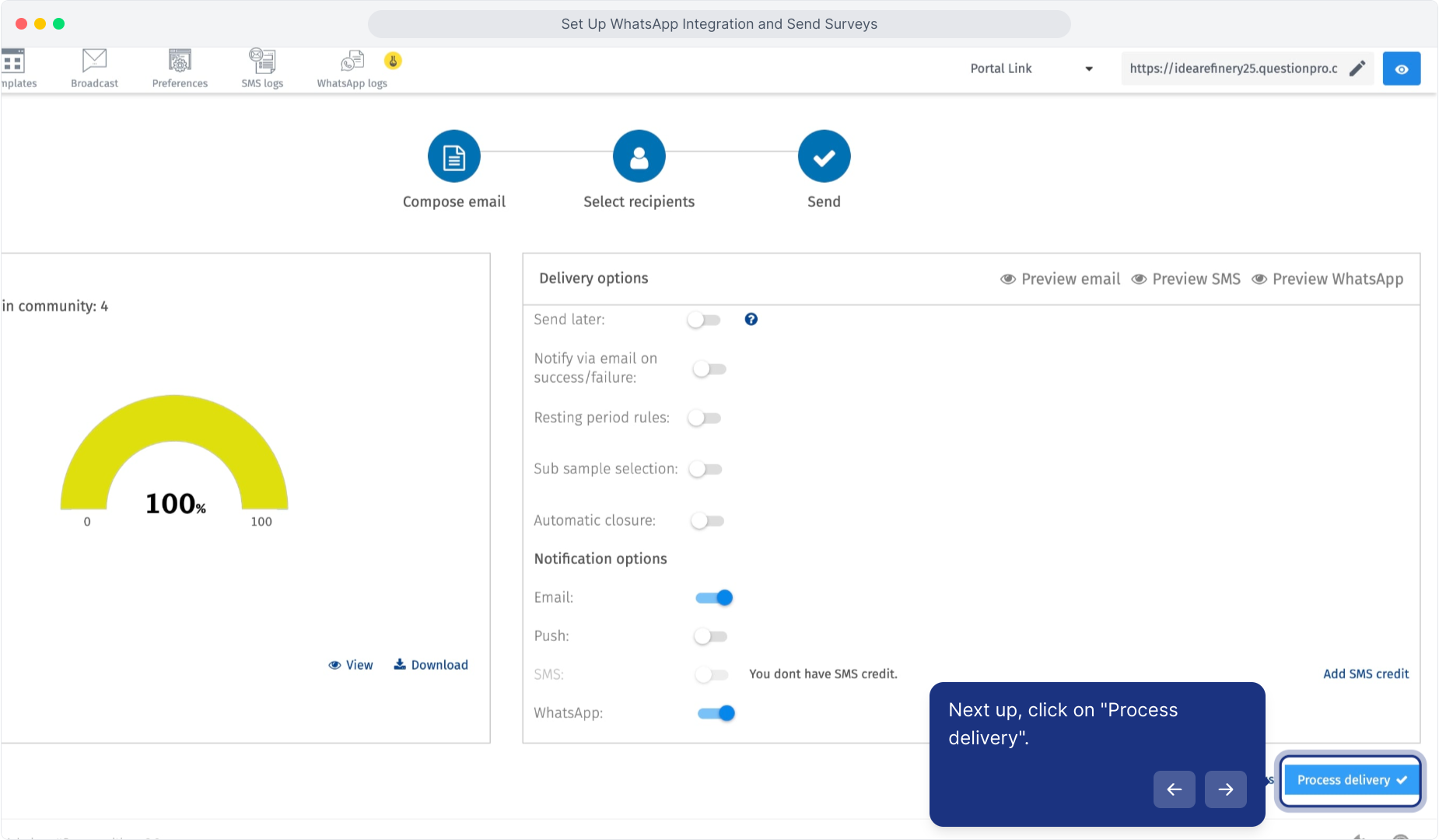
The delivery screen provides notification options for the available communication channels.
Enable WhatsApp to send the survey through WhatsApp and configure the other available notification channels based on your distribution requirements.
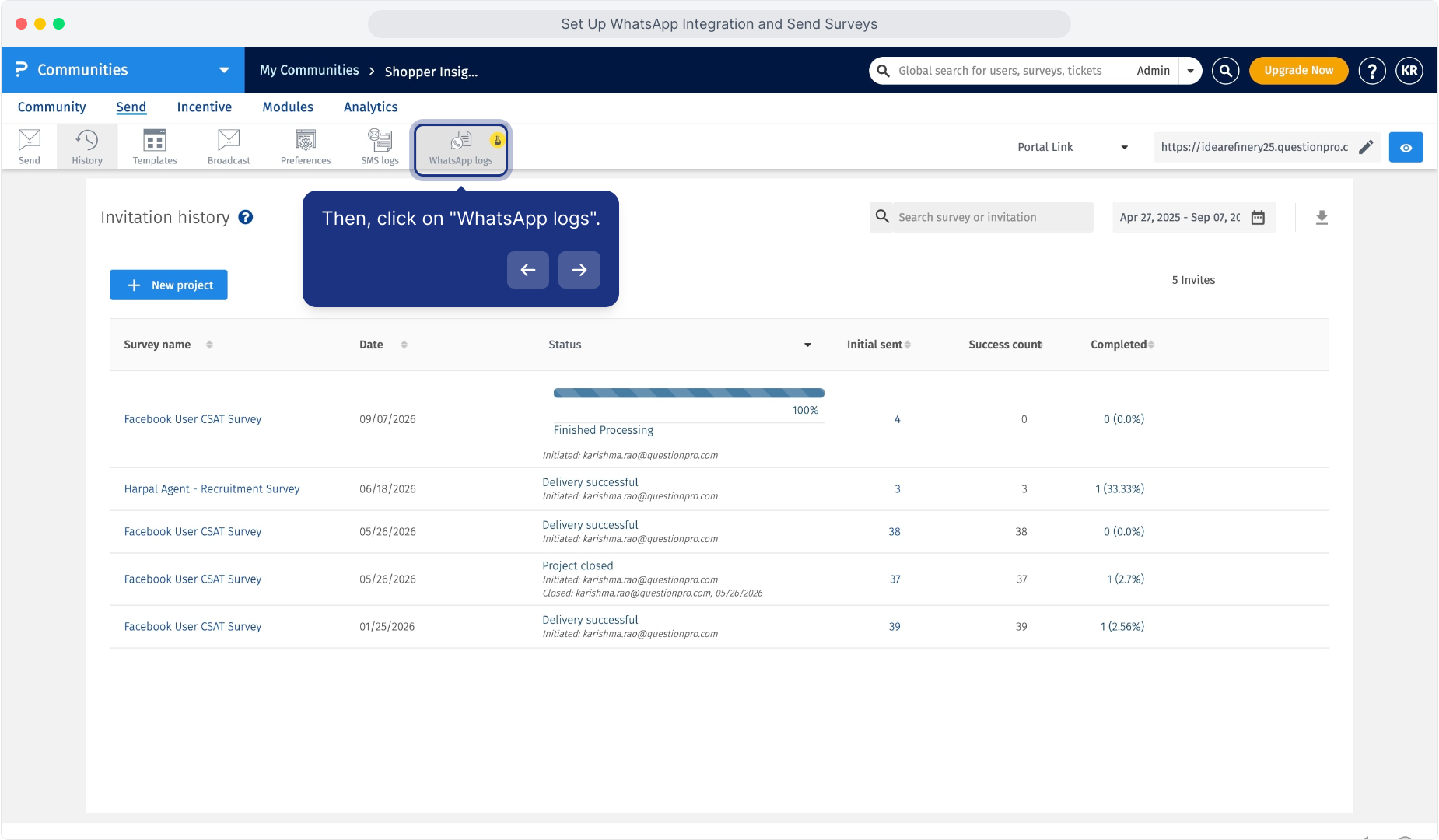
QuestionPro Communities provides WhatsApp Logs to help administrators review WhatsApp survey distribution activity.
To view the logs:
- Open your community.
- Navigate to Send.
-
Click WhatsApp Logs.
The WhatsApp Logs page displays information about the connected WhatsApp account and WhatsApp distribution activity.
The WhatsApp Logs page displays the connected WhatsApp account and a summary of sent WhatsApp messages.
The log includes information such as:
- Email address
- Timestamp
- Recipient
- Status
- Failure reason
- Message type
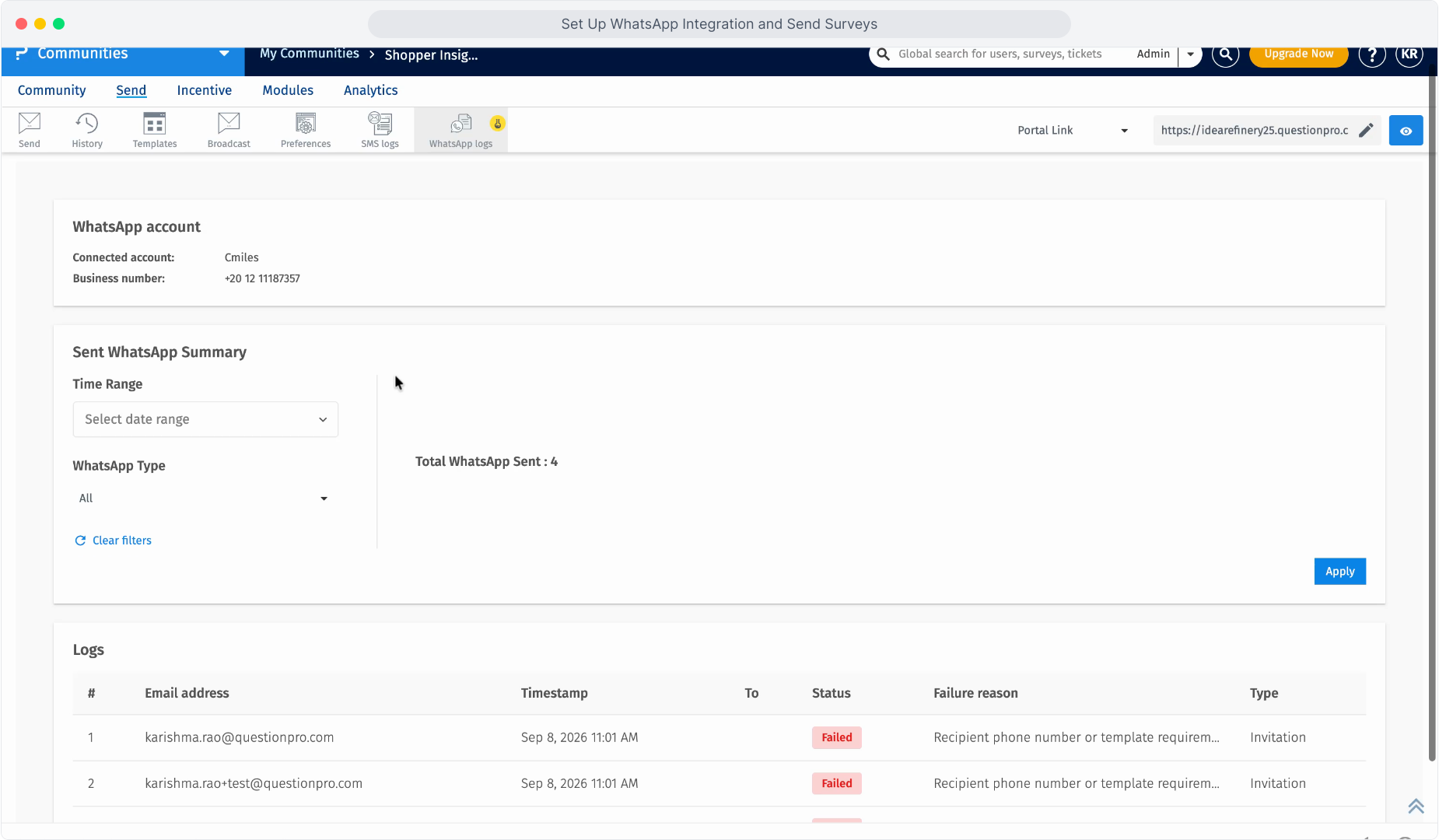
The failure reason can be used to help identify why a WhatsApp message was not successfully delivered.
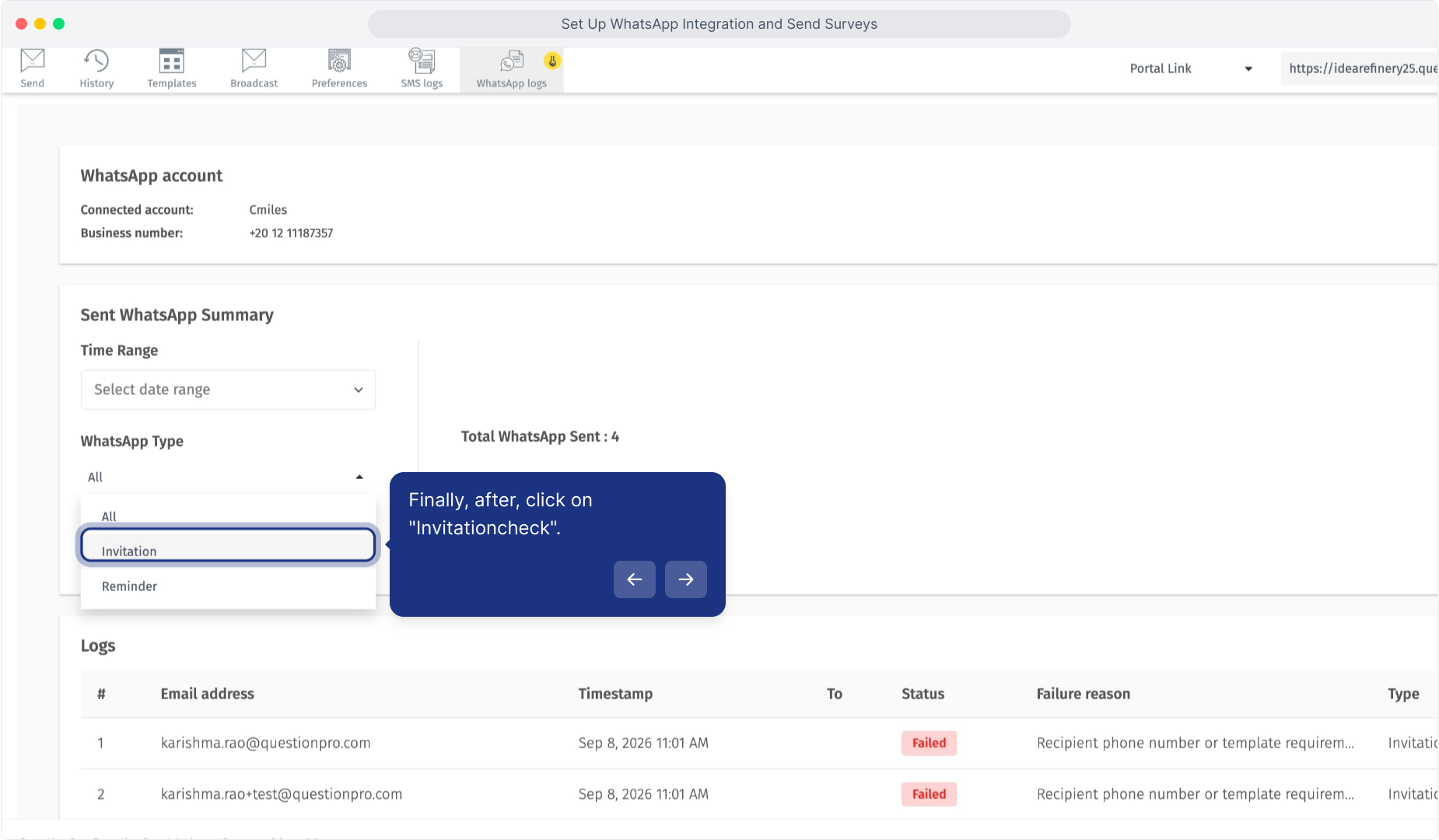
WhatsApp Logs can be filtered to review specific distribution activity.
Use the following filters:
-
Time Range
Select the required date range for the WhatsApp activity you want to review.
-
WhatsApp Type
Filter messages according to their type.
Available options include:
- All
- Invitation
- Reminder
Click Apply to update the WhatsApp summary and logs.
Do I need a WhatsApp Business account?
Yes. You need valid Meta WhatsApp Business API credentials before you can connect WhatsApp with QuestionPro Communities.
What credentials are required?
You need the Phone Number ID, Access Token, WhatsApp Business Account ID, and Meta App ID.
Can I send a WhatsApp survey immediately after creating a template?
No. The template must first be approved before it can be used for survey distribution.
How do I know whether my template is approved?
Open Messaging Center > Templates and review the status displayed next to the template. You can also use Sync Status to refresh the template status.
Can I personalize WhatsApp survey invitations?
Yes. Supported variables shown in the template builder include {{first_name}}, {{last_name}}, and {{survey_link}}.
How is the survey link added to the message?
Add the {{survey_link}} variable to the WhatsApp message body using the Add variable option.
Can I select specific members to receive a WhatsApp survey?
Yes. Use Custom filter, Existing filter, or Email filter when selecting recipients.
Can I configure survey incentives?
Yes. Complete, Quota, and Terminate incentive points can be configured before selecting recipients.
Where can I check whether a WhatsApp message was sent successfully?
Navigate to Send > WhatsApp Logs within the community and review the message status.
Can I see why a WhatsApp message failed?
Yes. The WhatsApp Logs table includes a Failure reason field for unsuccessful messages.
Can WhatsApp Logs be filtered by invitations and reminders?
Yes. Use the WhatsApp Type filter and select All, Invitation, or Reminder.
- Complete and test the WhatsApp Business connection before creating survey campaigns.
- Use clear and descriptive template names so administrators can easily identify the correct template during survey distribution.
- Select the correct language when creating each template.
- Use personalization variables such as {{first_name}} where appropriate.
- Include the required {{survey_link}} variable when the member needs to access a survey from the WhatsApp message.
- Provide valid sample values when creating templates that contain variables.
- Confirm that the WhatsApp template is approved before attempting to use it for survey distribution.
- Review the WhatsApp message before proceeding to recipient selection.
- Review the number of verified recipients shown in the Filter summary before sending.
- Use Preview WhatsApp before processing delivery when you want to verify the member-facing message.
- Check WhatsApp Logs after distribution to monitor successful and failed sends.
- Use the Failure reason field in WhatsApp Logs to troubleshoot unsuccessful messages.
This feature is available with the following licenses :
Essentials Advanced Team Edition Research Edition Communities
